Guide d'installation PrestaShop
Ajoutez un assistant de boutique IA à votre boutique PrestaShop avec synchronisation automatique des produits.
Vous êtes dans le guide d'installation développeur. Vous cherchez un aperçu de ce qu'Emporiqa offre à votre boutique PrestaShop ? Voir la page d'intégration.
Démarrage rapide
Pour les propriétaires de boutique. Installez, cliquez sur Connecter, envoyez votre catalogue. Avec captures d'écran à chaque étape.
DémarrerDocumentation développeur
Pour les développeurs. Architecture, payload webhook, hooks de personnalisation et extensibilité.
LireDémarrage rapide
Installez le module, cliquez sur Se connecter à Emporiqa, envoyez votre catalogue. Le module ne touche ni à votre thème ni à votre tunnel de commande. Le bouton Tester la connexion vérifie tout avant qu'aucune donnée produit ne quitte votre site, et vous pouvez désactiver le module depuis le même écran si ça ne vous convient pas.
Ce qu'il vous faut
- Accès administrateur à votre boutique PrestaShop en HTTPS (version 8.1 ou plus récente, avec PHP 8.0 ou plus récent)
- Un compte Emporiqa, ou créez-en un à l'étape 1 (démarrage gratuit, sans carte)
- Quelques minutes de travail pratique. Gardez l'onglet Sync ouvert jusqu'à ce que la barre de progression soit pleine.
First, install the module. Get the zip from the PrestaShop Addons Marketplace or the GitHub repository, then upload it via Modules → Module Manager → Upload a module. PrestaShop installs it and registers the required hooks.
Cliquer sur Se connecter à Emporiqa
Allez à Modules → Emporiqa → Configurer. Cliquez sur Se connecter à Emporiqa. Vous arrivez sur le tableau de bord Emporiqa, confirmez la boutique à connecter (ou créez-en une nouvelle), et revenez à un module connecté. Aucun Store ID ni Connection Secret à copier entre les onglets.
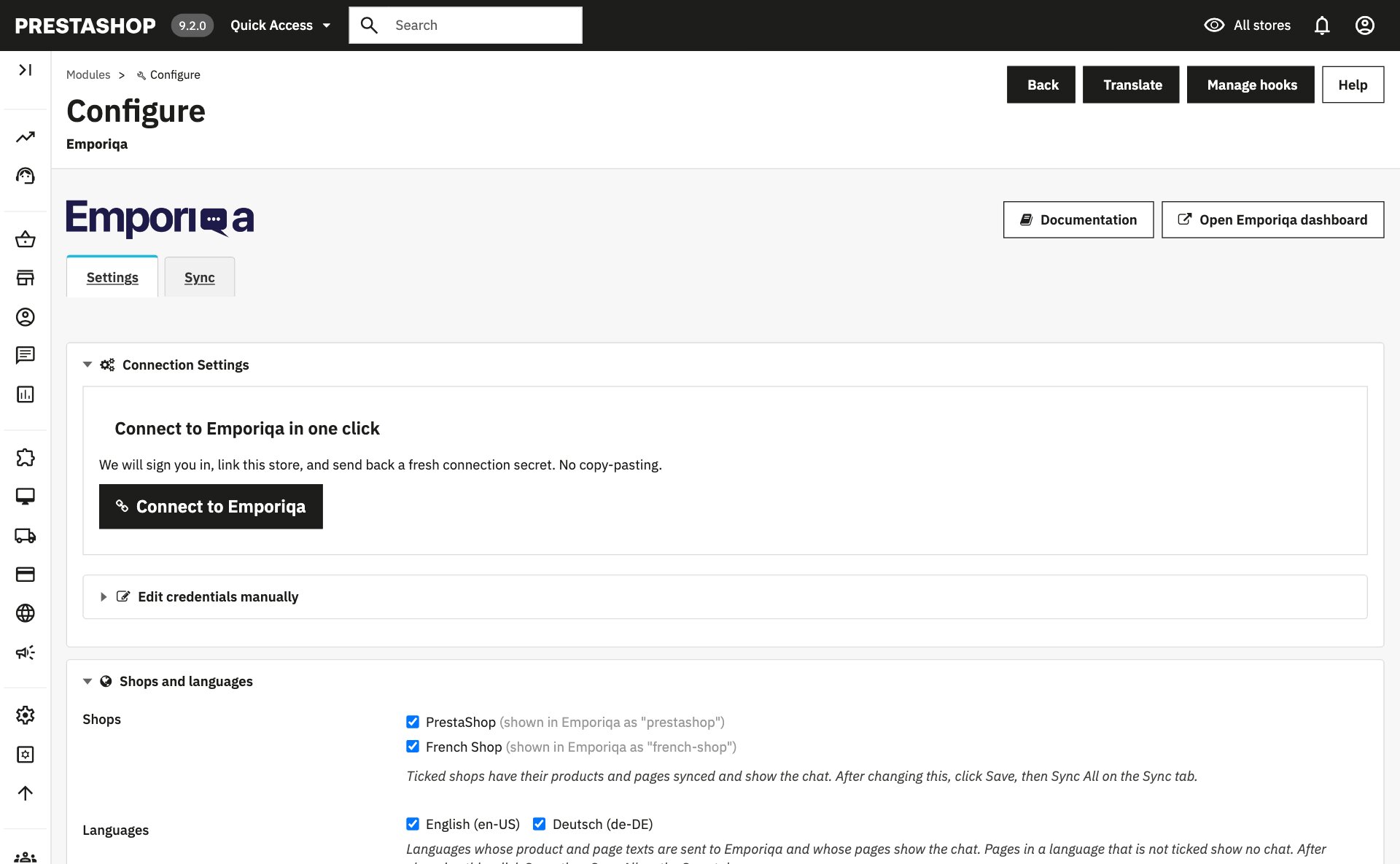
Plutôt en manuel ?
Si votre site n'est pas en HTTPS, ou si vous préférez coller les identifiants vous-même, dépliez Modifier les identifiants manuellement sur la page de configuration. Collez le Store ID et le Connection Secret depuis votre tableau de bord Emporiqa sous Paramètres de boutique → Intégration. Le chemin manuel mène au même résultat que le clic unique.
Envoyer votre catalogue
Après la connexion, l'onglet Sync affiche une carte de bienvenue verte avec Envoyer mon catalogue. Cliquez pour envoyer tous les produits et pages d'un coup. Les catalogues plus importants prennent quelques minutes, le panneau affiche la progression. Pour valider la connexion avant que des données ne quittent votre site, cliquez d'abord sur Tester la connexion (Dry Run).
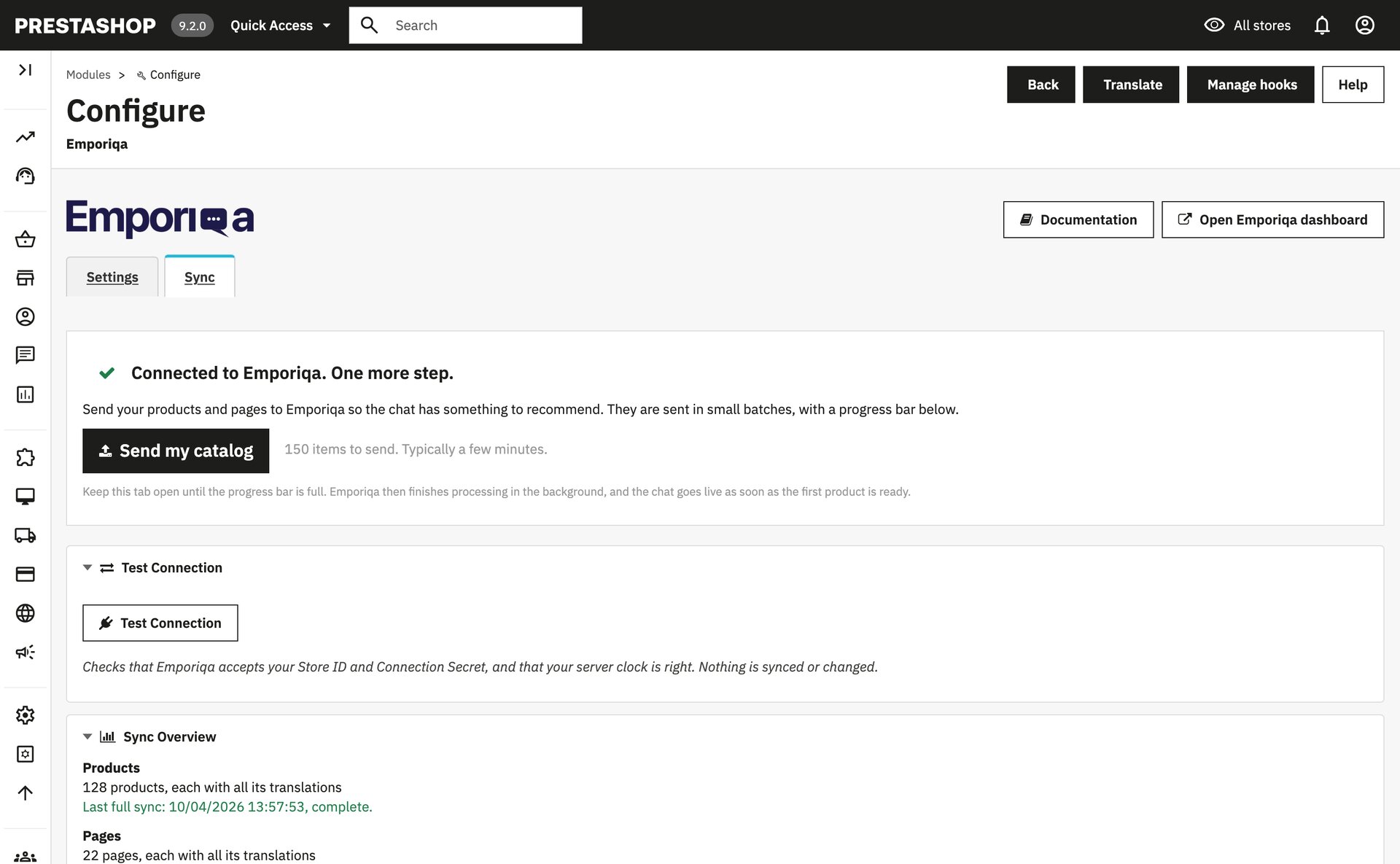
Testez, puis mettez en ligne
Dans votre tableau de bord Emporiqa, ouvrez « Test your chat » (le tableau de bord est en anglais) et posez une question sur un produit. Quand les réponses vous conviennent, cliquez sur « Go live ». La bulle de chat apparaît alors dans le coin inférieur droit de votre vitrine.
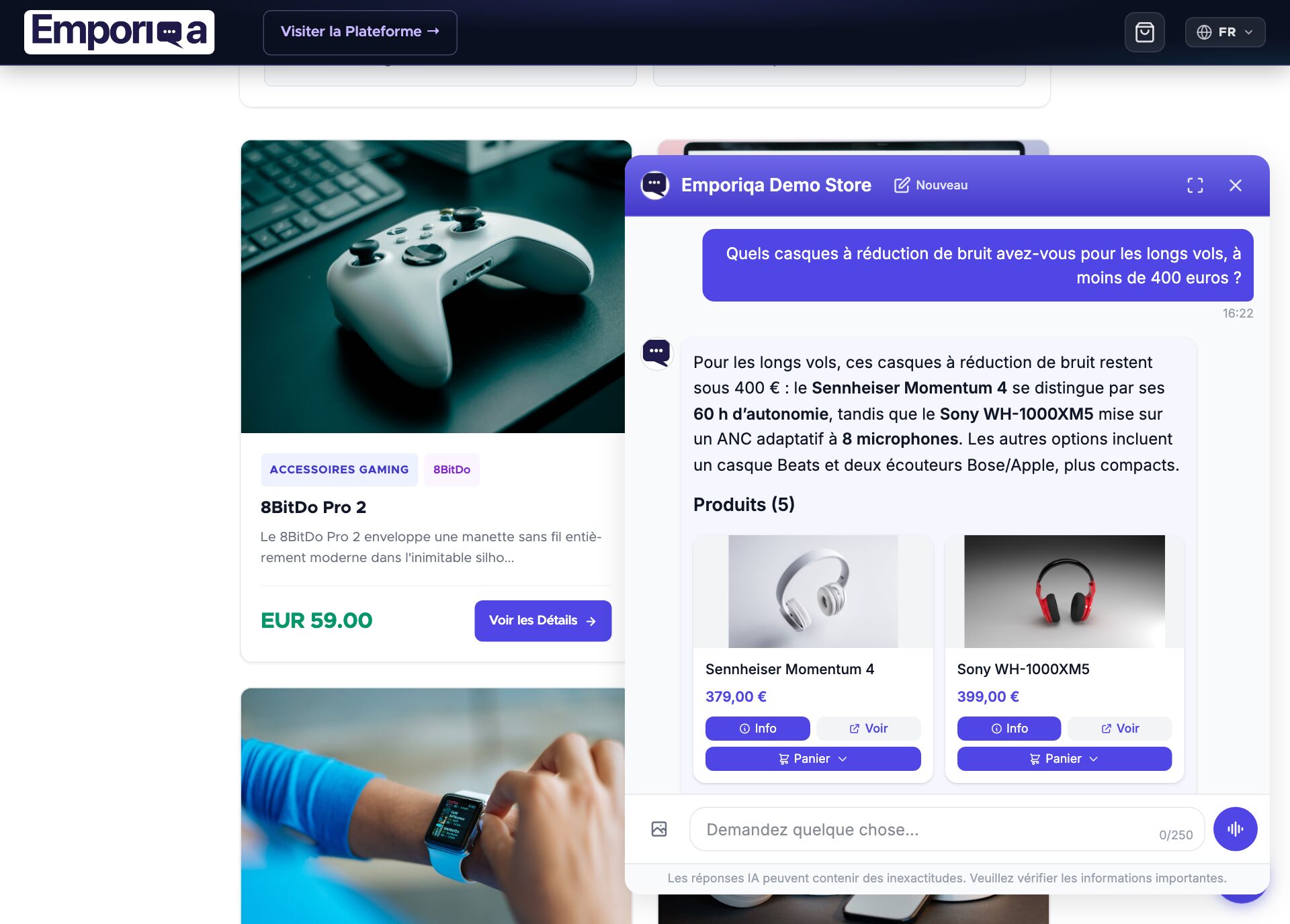
C'est en ligne
- La connexion est signée et renouvelable depuis le module. Aucun identifiant stocké en clair.
- Les nouveaux produits et pages se synchronisent automatiquement lorsque vous les enregistrez
- Les clients peuvent poser des questions sur les produits, les politiques et leurs commandes (une fois la règle Order status ajoutée)
- Ajouter au panier dans le chat ; les clients procèdent au paiement de votre boutique PrestaShop
Ensuite, le propriétaire de la boutique peut connecter la boîte mail de votre boutique dans Settings → Customer emails, et Emporiqa peut rédiger vos réponses aux e-mails clients à partir du même catalogue et des mêmes pages et, sur Gmail, Google Workspace et Microsoft (Outlook.com et Microsoft 365), de vos données de commande. Guide des e-mails clients. Vous utilisez Claude ou ChatGPT ? Connectez-le pour lui demander comment se porte votre boutique.
Besoin d'adapter la synchronisation, d'ajouter des champs personnalisés ou d'intégrer un module tiers ?
Voir la documentation développeurDeveloper Documentation
Architecture, configuration reference, webhook payload schema, and customization hooks.
Architecture
Emporiqa uses your store catalog as its knowledge base: the module pushes products, combinations, prices, stock and CMS pages over webhooks as you save them, so there is no separate knowledge base you have to write or keep up to date. For anything your shop pages never covered, you can write a page yourself on the Pages screen in the Emporiqa dashboard: a title and the text in your own words, in up to 10 languages on the same page. You write each language yourself, and any of them can carry a link to the same page on your site. The chat answers from it like it answers from any page your shop sent, and a sync never overwrites it. Up to 25 pages per store. On the Products screen you can set up to 50 products to Promoted or Top: the chat shows them first when they match what the shopper asked, Top before Promoted, and never shows them for unrelated questions. A sync never clears it.
The module listens to PrestaShop hooks (actionProductSave, actionObjectCmsUpdateAfter, combination events, order validation, etc.) and sends webhook events to Emporiqa using deferred delivery: events are queued during the request and flushed after the response reaches the browser via register_shutdown_function. Saving a product completes locally; the webhook delivery runs asynchronously after the response.
All translations and channels for a single product or page consolidate into one webhook event. Combinations cascade up: editing a child triggers a parent re-sync so search always sees the full catalog state.
Requirements
| PrestaShop | 8.1+ / 9.x (tested on 8.1 to 9.2) |
| PHP | 8.0+ on PrestaShop 8.1, 8.1+ on PrestaShop 9. PrestaShop 8.1 also runs on PHP 7.x, but module 1.3.0 and later do not: on PHP 7 the install stops with "Emporiqa needs PHP 8.0 or newer". |
| Emporiqa account | Free Emporiqa account (free to start, no card) |
Configuration Reference
All settings live at Modules → Emporiqa → Configure. Connection Settings is the main section and is expanded by default. Shops and Languages sit next to it. The sync toggles, order tracking, webhook URL and batch size are collapsed under Advanced. Once connected, a Ready-made rules section shows the Order status address. The configuration page is available in English, French and German.
Connection Settings
| Setting | Description |
|---|---|
| Store ID | Your unique store identifier from the Emporiqa dashboard. |
| Connection Secret | Shared secret used for HMAC-SHA256 signing of webhook, Order status and order tracking requests. |
| Reconnect | Only click it when Emporiqa or this page asks you to. It replaces your connection secret automatically. Upgrading the module does not need a reconnect. |
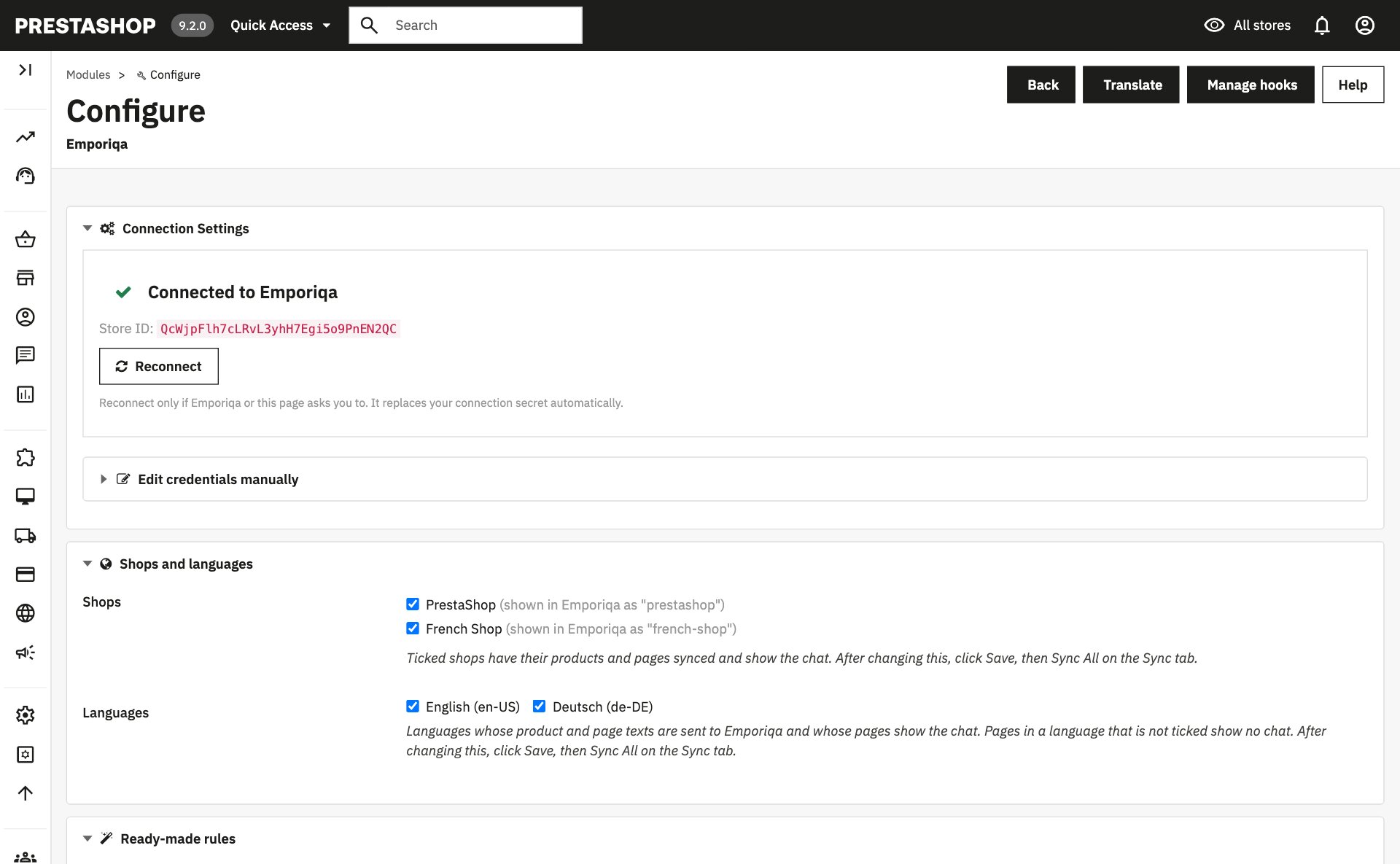
Shops and Languages
| Setting | Description |
|---|---|
| Shops (multistore only) | Which shops are synced and show the chat. All shops share one Emporiqa store, and each shop is a channel. Default: all active shops. |
| Languages | Which languages are synced and offered in the chat. The module maps each PrestaShop language to its ISO code and puts all translations into one payload per product. On a page in a language you did not tick, the chat opens in the shop's default language if it is ticked, otherwise in the first ticked one. |
Advanced Settings
Most stores don't need to change these.
| Setting | Description |
|---|---|
| Auto-sync products | Send each product change as it is saved. |
| Auto-sync pages | Send each CMS page change as it is saved. |
| Order tracking (Old order tracking) | On by default. The older way to answer "where is my order?", through the module's order tracking endpoint and its Order Tracking URL. It keeps working for shops that already use it. New shops use the Order status rule from the Ready-made rules section instead; see Order status. |
| Webhook URL | Emporiqa webhook endpoint. Default works for most stores. |
| Batch Size | Items per webhook request during full sync (default: 25). |
Always-on capabilities
- Cart operations: add, update, remove from inside the chat. The cart badge in your theme's header updates right after the chat adds a product.
- Signed-in shoppers: the chat knows a logged-in customer through a short-lived token it fetches when the chat opens. The token is never written into the page, so a full-page cache cannot hand one customer's identity to another.
- Conversion tracking: chat sessions linked to completed orders for revenue attribution.
- Multi-shop mapping: each PrestaShop shop auto-maps to a slugified channel.
Features
Real-time Webhooks
Products and CMS pages sync via webhooks on create, update, and delete using PrestaShop hooks (actionProductSave, actionProductDelete, etc.) with dedup to prevent duplicate events.
Chat Widget
Embedded automatically via the displayHeader hook. Language and currency are detected from the current shop context.
Multilingual
Products sync with translated names, descriptions, categories, and attributes from all enabled languages, consolidated into one payload per product. Each language maps to its ISO code automatically.
Combination Sync
Full parent/child sync for product combinations. Combination changes trigger parent re-sync. Deleting a combination sends a variation delete event and re-syncs the parent.
Cart Operations
Customers can add, update quantities, and checkout from the chat. Front controller: /module/emporiqa/cartapi.
Admin Sync UI
Run a full sync from the module configuration page with a progress bar, and keep the tab open until it is full. Test Connection checks the credentials and warns when your server's clock is more than 2 minutes off.
Conversion Tracking
Tracks chat sessions to purchases via actionValidateOrder and actionOrderStatusPostUpdate.
Deferred Sending
Webhook events are queued during the request and flushed after the response is sent via register_shutdown_function. No impact on page load.
Minimum Order Quantity
PrestaShop's minimal_quantity (per product and per combination) is sent on every sync. The assistant blocks under-minimum cart actions and offers the merchant's minimum to the customer instead of silently failing.
Catalog-change coverage
Scheduled promos, image edits, out-of-stock transitions, category and brand renames, currency rates, tax changes, cart rules, and new languages all re-emit the affected entities (or log an actionable warning when the change is catalog-wide). Per-product changes flow through automatically; catalog-wide changes ask the merchant to run a full sync from the Sync tab.
Multi-shop install
On multi-shop installs, the module enables for every shop in a single install (forces Shop::CONTEXT_ALL before parent::install()), so the widget renders across all storefronts and hooks fire for every shop's catalog out of the gate.
Webhook Payload
Each product or page is sent as a single webhook event containing all languages and channels. Translatable fields are nested by channel and language code.
Product Event
{
  "type": "product.updated",
  "data": {
    "identification_number": "product-42",
    "sku": "product-42",
    "channels": ["my-shop"],
    "names":        {"my-shop": {"en": "Hiking Boots", "fr": "Chaussures de randonnee"}},
    "descriptions": {"my-shop": {"en": "Waterproof leather boots...", "fr": "Bottes en cuir impermeables..."}},
    "links":        {"my-shop": {"en": "https://store.com/hiking-boots", "fr": "https://store.com/fr/chaussures-randonnee"}},
    "categories":   {"my-shop": {"en": ["Footwear > Hiking"], "fr": ["Chaussures > Randonnee"]}},
    "attributes":   {"my-shop": {"en": {"Material": "Leather"}, "fr": {"Material": "Cuir"}}},
    "brands":       {"my-shop": "TrailPeak"},
    "prices":       {"my-shop": [{"currency": "EUR", "current_price": 129.99, "regular_price": 149.99}]},
    "images":       {"my-shop": ["https://store.com/img/boots-front.jpg"]},
    "availability_statuses":  {"my-shop": "available"},
    "stock_quantities":       {"my-shop": 42},
    "min_order_quantities":   {"my-shop": 1},
    "max_order_quantities":   {"my-shop": null},
    "available_for_order": true,
    "condition": "new",
    "is_virtual": false,
    "is_parent": false,
    "parent_sku": null,
    "variation_attributes": {}
  }
}
Field Structure
| Type | Pattern | Fields |
|---|---|---|
| Translatable | {channel: {lang: value}} |
names, descriptions, links, categories, attributes, variation_attributes |
| Shared | {channel: value} |
brands, prices, images, availability_statuses, stock_quantities, min_order_quantities, max_order_quantities |
| Flat | Direct value | identification_number, sku, channels, is_parent, parent_sku, available_for_order, condition, is_virtual |
Customization Hooks
The module dispatches PrestaShop hooks you can listen to from your own module to control sync behavior and modify data before it's sent.
| Hook | Description |
|---|---|
actionEmporiqaShouldSyncProduct |
Set $params['should_sync'] = false to skip a specific product. |
actionEmporiqaShouldSyncPage |
Set $params['should_sync'] = false to skip a specific CMS page. |
actionEmporiqaFormatProduct |
Modify the formatted product payload before send. |
actionEmporiqaFormatPage |
Modify the formatted page payload before send. |
actionEmporiqaFormatOrder |
Modify the order.completed event payload before it is sent. |
actionEmporiqaOrderStatus |
Modify the Order status rule's answer (&$data, $order). |
actionEmporiqaOrderTracking |
Modify the older order tracking response before it's returned to the customer. |
actionEmporiqaWidgetParams |
Add or override widget embed parameters. |
actionEmporiqaCustomerInfo |
Modify the customer info action's answer (&$data, $customer), version 1.3.3 or newer: remove a field, or add your own under extra. See Customer info action. |
Example: skip inactive products
// In your custom module
public function hookActionEmporiqaShouldSyncProduct($params)
{
    $product = $params['product'];

    if (!$product->active) {
        $params['should_sync'] = false;
    }
}
Register your hooks in your module's install() method or via service configuration. All hooks receive a mutable parameters array.
Order status
The ready-made Order status rule answers "Where is my order?" in the chat. Emporiqa asks your shop through the module's signed order_status endpoint and tells the shopper the status, the order date and, when there is one, the tracking link. On PrestaShop 9.2 the answer includes the tracking numbers from its new shipments, alongside the carrier's tracking number, each with its carrier. Only orders from the shops chosen under Shops and Languages are found. It needs module version 1.3.0 or newer.
What the shopper sees, what your team gets and how to write your own rules: Rules guide.
Set it up
- In the back office, open Modules → Emporiqa → Configure. Once connected, it shows a Ready-made rules section with the Order status address and a Copy button. If you connected with manual credentials and the section is not there yet, click Test Connection on the Sync tab.
- Click Open in Emporiqa next to Order status. Your Emporiqa dashboard opens at Settings → Rules with Order status highlighted. Click Add.
- Click Try it and ask about one of your recent orders. When it answers correctly, click Go live.
If you connected with Connect to Emporiqa, there is nothing to copy: Emporiqa fills in your shop's address itself and checks it with your shop. If it ever asks for the address, paste the Order status address the module shows, which looks like this:
https://your-store.com/module/emporiqa/action
What the shopper gives
- Signed in to your shop: only the order reference (the one in the order confirmation email). The module answers only for that customer's own orders.
- Guest: the order reference (the one in the order confirmation email) and the email used for the order.
Endpoint
POST /module/emporiqa/action?key=order_status
Requests are signed with keys derived from your connection secret (X-Emporiqa-Action-Signature) and rejected after 5 minutes, and the module signs its answer back (X-Emporiqa-Response-Signature). An unknown order and a wrong email get the same answer, so the chat never reveals whether an order exists. To adjust the answer, use the actionEmporiqaOrderStatus hook.
Order status is optional. Without it, and without the older setup below, order questions go to the Customer Support agent instead.
Older setup: Order Tracking URL
Stores set up before the Order status rule use the module's Order Tracking URL, set as the Order Tracking API URL in the Emporiqa dashboard (Settings → Integration → For your developer). One-click Connect filled it in by itself. That keeps working as before. Where ready-made rules are offered, the module shows it under Advanced as Old order tracking. It always asks for the email on the order. Once Order status is live, the note under Advanced tells you how to switch the old one off: clear the URL in your Emporiqa dashboard first, then switch it off in the module. The old endpoint:
POST /module/emporiqa/ordertracking
Requests are authenticated using the same HMAC-SHA256 connection secret. Requests older than 5 minutes are rejected. See the Webhook Setup Guide for the full request/response schema.
Signed-in customers
When a shopper is signed in to your store, the chat shows them their own prices and uses their account when it hands the conversation to your team. There is nothing to set up: it starts once the module is on the versions below. Guests see your public prices, as before.
- Their own prices, version 1.3.1 or newer: customer-group prices, group discounts, customer-specific prices, quantity discounts and catalog price rules, as PrestaShop calculates them for that customer, with the tax of their own address. The chat asks your store through the signed
customer_pricesaction when it shows a product, and shows the answer to that customer only, on the cards, in quotes and in the product details. Coupons and cart rules apply at your checkout, as before, and a search with a price limit ("under 200") is applied to what the customer pays. - Their name and email, version 1.3.3 or newer (the Customer info action): the chat greets them by first name, and a handoff reaches your team with the name and email on their account, so they are not asked for them.
Both answer only for the customer the module signed in for this store, and only on that customer's own messages: a shopper who signs out is a guest from their next message. Per customer, prices are kept for 5 minutes and the account details for 30. Each customer is limited to 30 requests and each store to 600 every 10 minutes.
Customer info action
From version 1.3.3 the module answers a signed customer_info request about a shopper who is signed in to your shop: the name and email on their account and their 10 newest orders in the shops you sync (reference, date, status, total and currency). Only that customer's own orders are listed, never a guest order placed with the same email, an address, a phone number or a customer group. With it, a signed-in shopper who asks "where is my order?" without a number gets their newest order, as long as the Order status rule is on; there is nothing to set up.
POST /module/emporiqa/action?key=customer_info
Requests are signed like Order status and limited to 30 per customer and 600 per shop every 10 minutes. To remove a field or add your own under extra, use the actionEmporiqaCustomerInfo hook, which runs after the answer is built. The upgrade to 1.3.3 registers it.
public function hookActionEmporiqaCustomerInfo(array $params)
{
    $customer = $params['customer'];
    unset($params['data']['customer']['email']);
    $params['data']['extra']['loyalty_points'] = 120;
}
Upgrading
Upgrading to 1.3.3
Upgrade from the Module Manager as usual, then run Sync Products once from the module's Sync tab. It corrects the product links already sent (on PrestaShop 8 they were sent without the category, so the chat did not recognise the product a shopper was looking at); nothing is re-indexed for it.
Upgrading to 1.3.0
- Check PHP first. 1.3.0 needs PHP 8.0 or newer (8.1 or newer on PrestaShop 9). On PHP 7 the upgrade stops with "Emporiqa 1.3.0 needs PHP 8.0 or newer" and the chat stays off on the storefront until PHP is upgraded.
- Upgrade the module from the Module Manager as usual. The upgrade clears PrestaShop's Smarty and CCC caches by itself.
- Purge your full-page cache. If you use a full-page cache module, or a CDN that caches HTML, purge it once after upgrading: cached pages still carry the old chat markup.
- Run Test Connection. It confirms the connection and warns if your server's clock is more than 2 minutes off.
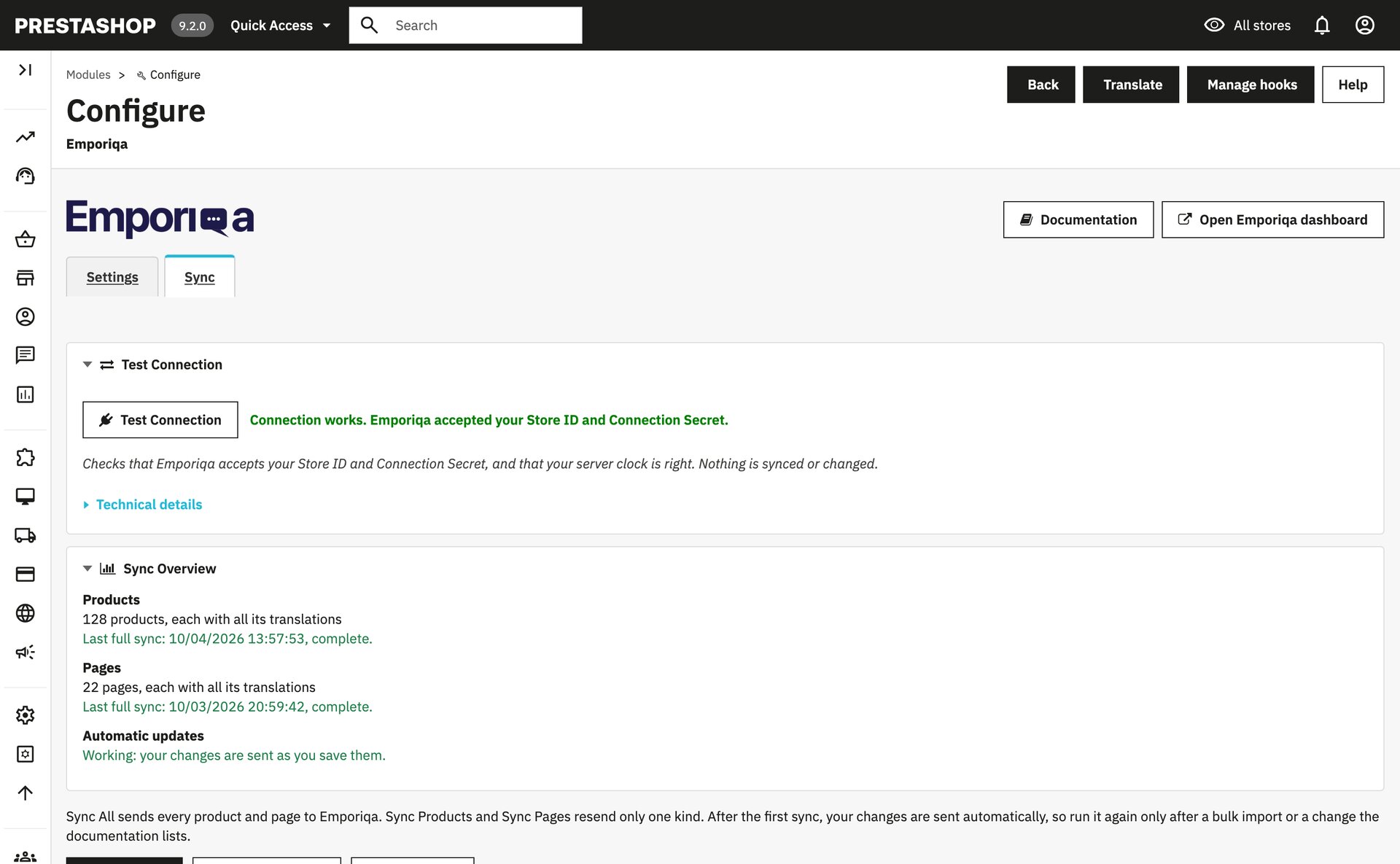
You don't need to reconnect after upgrading, and order tracking keeps working as before. Click Reconnect only if Emporiqa or the configuration page asks you to.
Rolling back to 1.2.8 after 1.3.0 has synced needs a reconnect. 1.3.0 signs its requests with a timestamp, and from its first sync Emporiqa refuses the older signature for your store, so 1.2.8 cannot sync until you click Connect to Emporiqa again.
Troubleshooting
"Emporiqa needs PHP 8.0 or newer"
Your server runs PHP 7. Ask your host to switch the site to PHP 8.0 or newer (8.1 or newer on PrestaShop 9), then install or upgrade again. Until then an installed copy does nothing on the storefront.
Products not appearing in chat
- Run a full sync from the module's Sync tab.
- Verify products are active and visible in the front office. A product set to Visibility Nowhere is not synced (from version 1.3.3); "Catalog only" and "Search only" products are.
- Confirm your Store ID and Connection Secret match the dashboard.
- Verify your Emporiqa subscription is active.
Chat widget not showing
- Did you press Go live? New stores start with the chat off until the owner presses Go live in the dashboard.
- Confirm the module is installed and Store ID is configured.
- Check that the
displayHeaderhook is registered (reinstall the module if needed). - Clear PrestaShop cache: Advanced Parameters → Performance → Clear cache.
- Right after an upgrade, purge your full-page cache module or CDN as well (see Upgrading).
- Check the browser console for JavaScript errors.
Sync not sending data
- Confirm
allow_url_fopenor cURL is enabled in PHP. - Verify your server can make outbound HTTPS requests.
- Check PrestaShop logs at Advanced Parameters → Logs.
- Run Test Connection from the configuration page. If it warns about the server clock, turn on time sync (NTP): Emporiqa refuses signed requests more than 5 minutes off, and the module logs that once a day.
Combinations not syncing
- Verify combinations have prices and are active.
- On a multistore install, a combination is sent only for the shops that sell it (from version 1.3.3).
- Save the parent product to trigger a re-sync.
- Run a full product sync from the Sync tab.
Related Articles
Chat for PrestaShop
Webhook architecture, combinations, deferred sending, and customization hooks.
Multilingual Chat Support
Cross-language search, answers in the shopper's language, how translations sync.
5 Questions Before You Pay
Evaluation checklist: data sync, handoff, pricing, languages, attribution.
Conversion Tracking
Prove chat ROI: session to cart to purchase attribution.
Answer accuracy: the chat answers from your synced catalog and store pages. It does not invent products, prices, or discount codes; when it is unsure, it says so and offers to bring in your team. You can check this yourself on the live demo store: demo.emporiqa.com.
Reviewed before listing: the WooCommerce, PrestaShop, Magento and Drupal plugins pass the platform's own review process before they are published on WordPress.org, PrestaShop Addons, Adobe Commerce Marketplace, and drupal.org. Your developer can read the source before installing: WooCommerce on WordPress.org, Drupal on drupal.org, and PrestaShop, Shopware and Sylius on GitHub (Shopware and Sylius also on Packagist). The Magento module is distributed through the Adobe Commerce Marketplace.
Who makes Emporiqa: Emporiqa is built by Rosel Group LTD, an EU company based in Sofia, Bulgaria, founded by Rosen Hristov, who has built e-commerce software for more than 15 years. It is GDPR-compliant and never uses your data to train AI models. Emporiqa runs on self-hosted platforms (WooCommerce, Magento and Adobe Commerce, PrestaShop, Drupal Commerce, Shopware 6, Sylius); it does not run on Shopify.