WooCommerce-Einrichtungsanleitung
Fügen Sie einen Chat-Assistenten zu Ihrem WooCommerce-Shop mit automatischer Produktsynchronisierung hinzu.
Sie befinden sich in der Entwickler-Einrichtungsanleitung. Suchen Sie nach einem Überblick darüber, was Emporiqa für Ihren WooCommerce-Shop tut? Zur Integrations-Seite.
Schnellstart
Für Shopbetreiber. Installieren, auf Verbinden klicken, Katalog senden. Mit Screenshots zu jedem Schritt.
StartenEntwicklerdokumentation
Für Entwickler. Architektur, Webhook-Payload, WP-CLI-Befehle und Anpassungsfilter.
LesenSchnellstart
Plugin installieren, auf Mit Emporiqa verbinden klicken, Katalog senden. Das Plugin berührt weder Ihr Theme noch Ihren Checkout. Die Schaltfläche Verbindung testen prüft alles, bevor Produktdaten den Shop verlassen, und Sie können das Plugin vom selben Screen aus deaktivieren, falls es nicht passt.
Was Sie brauchen
- Admin-Zugriff auf Ihre WordPress-Website über HTTPS (WordPress 6.2+, WooCommerce 8.0+)
- Ein Emporiqa-Konto, oder erstellen Sie eines im Schritt 1 (kostenlos starten, ohne Kreditkarte)
- Ein paar Minuten Zeit. Synchronisierung läuft im Hintergrund; Sie müssen den Tab nicht offen halten.
First, install and activate the plugin. In WordPress admin go to Plugins → Add New, search for Emporiqa, click Install Now, then Activate. Or upload the zip from wordpress.org/plugins/emporiqa via Plugins → Add New → Upload Plugin.
Auf Mit Emporiqa verbinden klicken
Gehen Sie zu Einstellungen → Emporiqa. Klicken Sie auf Mit Emporiqa verbinden. Sie landen im Emporiqa-Dashboard, bestätigen den Shop, den Sie verknüpfen möchten (oder erstellen einen neuen), und kommen zurück zu einem verbundenen Plugin. Keine Shop-ID oder kein Verbindungsgeheimnis zum Kopieren zwischen Tabs.
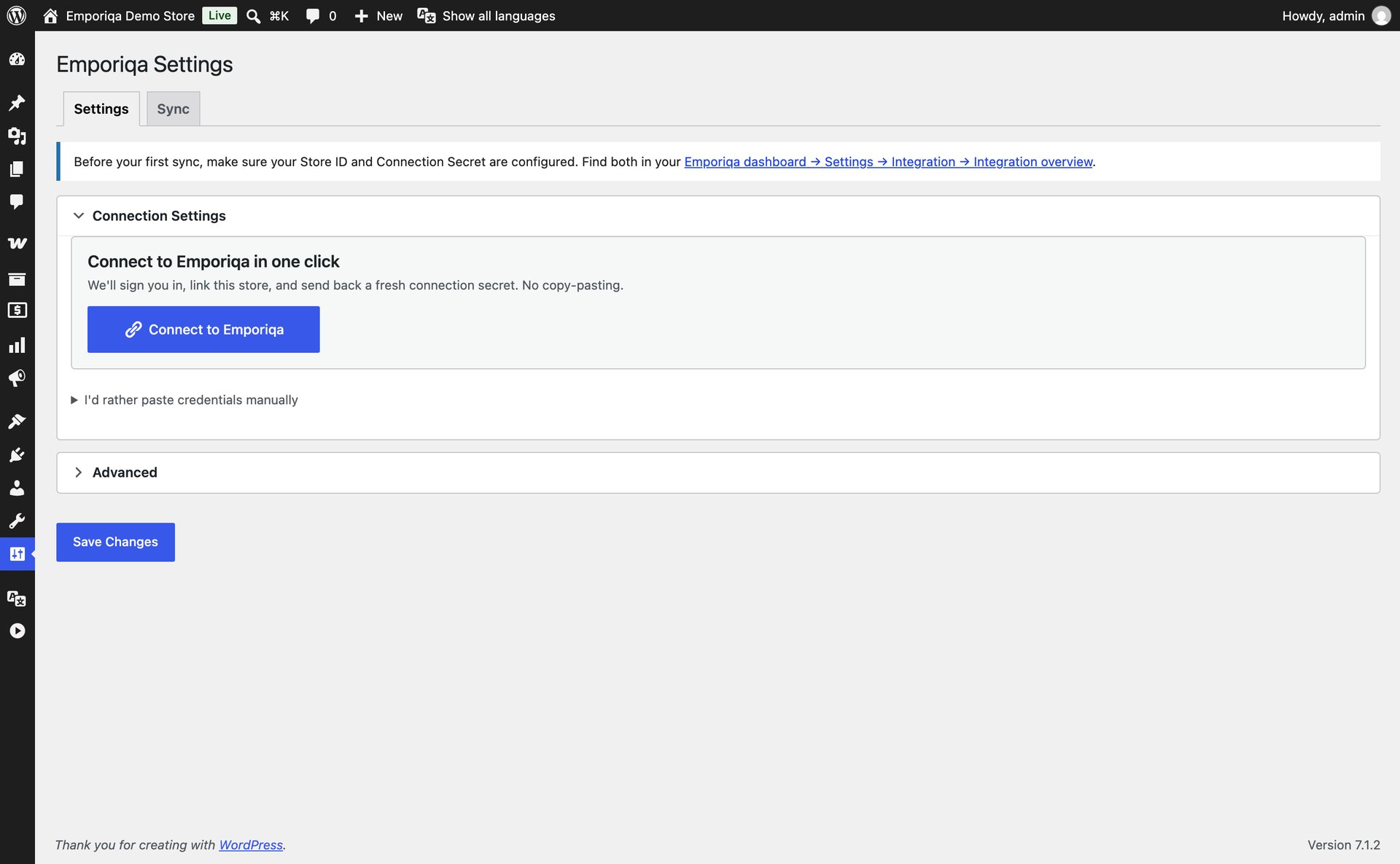
Manuelle Einrichtung bevorzugt?
Wenn Ihre Website nicht über HTTPS läuft, oder wenn Sie die Zugangsdaten lieber selbst einfügen möchten, öffnen Sie Zugangsdaten manuell bearbeiten auf der Einstellungsseite. Fügen Sie Shop-ID und Verbindungsgeheimnis aus Ihrem Emporiqa-Dashboard unter Shop-Einstellungen → Integration ein. Beide Wege führen zum gleichen Ergebnis.
Katalog senden
Nach dem Verbinden zeigt der Tab Synchronisierung eine grüne Willkommenskarte mit Katalog senden. Klicken Sie darauf, um alle Produkte und Seiten in einem Schritt zu senden. Größere Kataloge dauern einige Minuten; der Bereich zeigt den Fortschritt. Um die Verbindung zu validieren, bevor Daten den Shop verlassen, klicken Sie zuerst auf Verbindung testen (Testlauf).
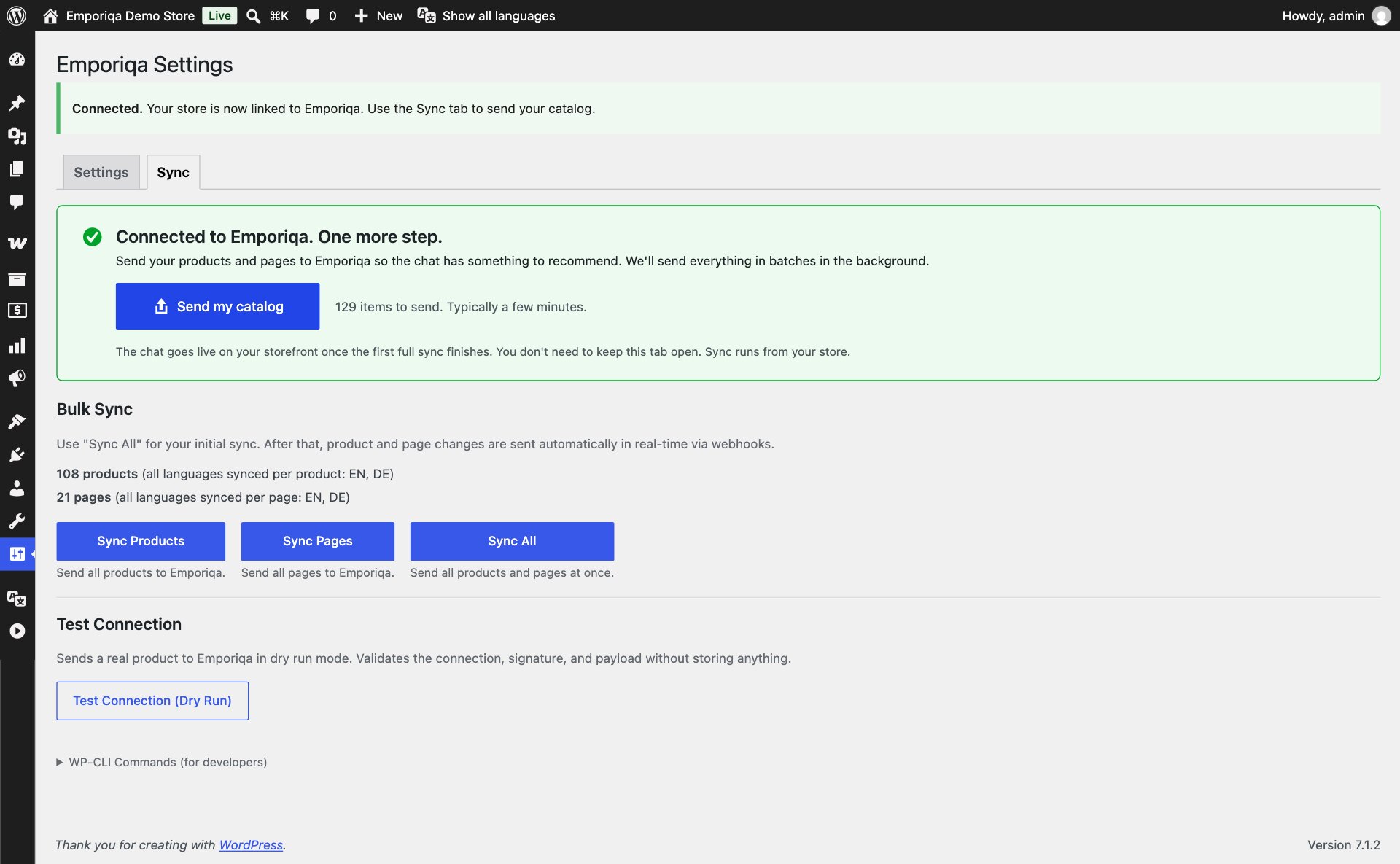
Testen, dann live schalten
Öffnen Sie in Ihrem Emporiqa-Dashboard „Test your chat“ (das Dashboard ist auf Englisch) und stellen Sie eine Produktfrage. Wenn die Antworten passen, klicken Sie auf „Go live“. Danach erscheint die Chat-Blase in der unteren rechten Ecke Ihres Shops.
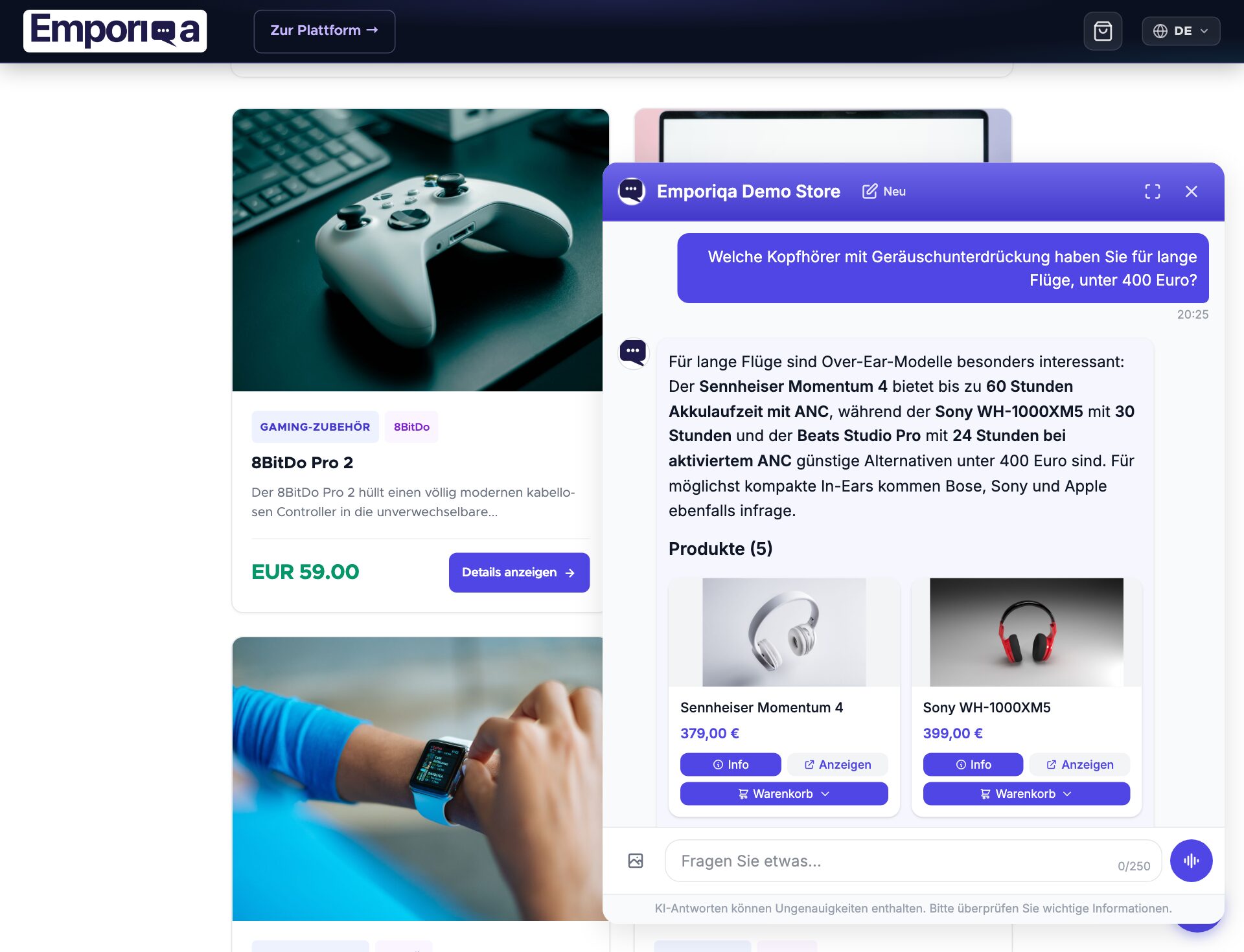
Sie sind online
- Verbindung ist signiert und lässt sich aus dem Plugin erneuern. Keine Zugangsdaten im Klartext gespeichert.
- Neue Produkte und Seiten synchronisieren sich automatisch, wenn Sie sie speichern
- Kunden können nach Produkten, Richtlinien und ihren Bestellungen fragen (sobald Sie die Regel „Order status“ hinzugefügt haben)
- Direkt im Chat in den Warenkorb legen; Kunden gehen weiter zu Ihrer WooCommerce-Kasse
Danach kann der Shop-Inhaber das Postfach Ihres Shops unter Settings → Customer emails verbinden, und Emporiqa kann Ihre Antworten auf Kunden-E-Mails entwerfen, aus demselben Katalog und denselben Seiten, bei Gmail, Google Workspace und Microsoft (Outlook.com und Microsoft 365) auch aus Bestellungen. Anleitung zu Kunden-E-Mails. Sie nutzen Claude oder ChatGPT? Verbinden Sie es und fragen Sie, wie Ihr Shop läuft.
Sie möchten die Synchronisierung anpassen, eigene Felder hinzufügen oder ein Plugin eines Drittanbieters anbinden?
Zur EntwicklerdokumentationDeveloper documentation
Architecture, configuration reference, webhook payload schema, WP-CLI commands, and customization filters.
Architecture
Emporiqa uses your store catalog as its knowledge base: the plugin pushes products, variations, prices, stock and store pages over webhooks as you save them, so there is no separate knowledge base you have to write or keep up to date. For anything your shop pages never covered, you can write a page yourself on the Pages screen in the Emporiqa dashboard: a title and the text in your own words, in up to 10 languages on the same page. You write each language yourself, and any of them can carry a link to the same page on your site. The chat answers from it like it answers from any page your shop sent, and a sync never overwrites it. Up to 25 pages per store. On the Products screen you can set up to 50 products to Promoted or Top: the chat shows them first when they match what the shopper asked, Top before Promoted, and never shows them for unrelated questions. A sync never clears it.
The plugin listens to WooCommerce and WordPress hooks (woocommerce_update_product, save_post, woocommerce_order_status_completed, etc.) and sends webhook events to Emporiqa using deferred delivery: product and page events are queued during the request and flushed on shutdown, while order conversion events are scheduled via Action Scheduler. Saving a product completes locally; the webhook delivery runs asynchronously after the response.
All translations and channels for a single product or page consolidate into one webhook event. Variable products sync the parent plus each variation, and changes cascade: saving a variation triggers a parent re-sync so search always sees the full catalog state. The plugin declares WooCommerce High-Performance Order Storage (HPOS) compatibility.
Requirements
| WordPress | 6.2 or higher |
| WooCommerce | 8.0 or higher |
| PHP | 7.4 or higher |
| Emporiqa account | Free Emporiqa account (free to start, no card) |
Configuration reference
All settings live at Settings → Emporiqa. Connection Settings is the main section and is expanded by default. Sync toggles and advanced settings (languages, webhook URL, batch size) are collapsed under Advanced.
Connection settings
| Setting | Description |
|---|---|
| Store ID | Your unique store identifier from the Emporiqa dashboard. |
| Connection Secret | Shared secret used for HMAC-SHA256 signing of webhook and Order status requests. |
| Order status address | Read-only, in the Ready-made rules section once connected. The address Emporiqa calls for the Order status rule; see Order status. |
Advanced settings
Most stores don't need to change these.
| Setting | Description |
|---|---|
| Sync Products | Enable/disable product synchronization. |
| Sync Pages | Enable/disable page synchronization. Only your WordPress Pages are synced. Blog posts and other content types are not; from version 1.2.2 the "Pages and posts to include" setting is gone, and posts sent by an earlier version are removed at the next Sync All. |
| Enabled Languages | Which languages to sync. The plugin auto-detects WPML and Polylang, consolidates translations into one payload per product, and falls back to determine_locale() when no multilingual plugin is active. |
| Webhook URL | Emporiqa webhook endpoint. Default works for most stores. |
| Batch Size | Items per webhook request during full sync (default: 25). |
Always-on capabilities
- Cart operations: add, update, remove from inside the chat via AJAX endpoints that talk directly to WooCommerce's cart.
- Conversion tracking: chat sessions linked to completed orders for revenue attribution.
- Multi-currency: detects the active currency from WOOCS, WPML Multi-Currency, WooCommerce Payments, and Aelia Currency Switcher; override with the
emporiqa_active_currencyfilter.
Features
Real-time webhooks
Products and pages sync via webhooks on create, update, and delete using WooCommerce hooks (woocommerce_update_product, save_post, etc.) with dedup to prevent duplicate events.
Chat widget
Embedded automatically via wp_footer. Language and currency are detected from the active WordPress locale and WooCommerce currency.
Multilingual
Auto-detects WPML and Polylang. Products sync with translated names, descriptions, categories, and attributes from all enabled languages, consolidated into one payload per product.
Variable products
Full parent/variation sync. Saving a variation triggers a parent re-sync. Deleting a variation sends a variation delete event and re-syncs the parent.
Cart operations
Customers can add, update quantities, and checkout from the chat. The plugin exposes dedicated AJAX endpoints that use WC()->cart directly.
Admin sync UI
Trigger full sync from the settings page Sync tab with an AJAX progress bar and live log panel. Three buttons: Sync Products, Sync Pages, Sync All. From version 1.2.2 the Sync tab also says when the last automatic change could not be sent, with the time and the reason.
Conversion tracking
Sends an order.completed webhook via woocommerce_order_status_completed, linking chat sessions to revenue on your dashboard.
Deferred sending
Product and page events are queued and flushed on shutdown. Order conversion events run through Action Scheduler so bulk order updates don't block the request.
Minimum order quantity
Reads the _minimum_allowed_quantity post meta (set by WooCommerce's official Min/Max Quantities extension and compatible clones) and ships it on every product and variation sync. Customize per product with the emporiqa_min_order_quantity filter. The assistant blocks under-minimum cart actions and offers the merchant's minimum instead of failing silently.
Webhook payload
Each product or page is sent as a single webhook event containing all languages and channels. Translatable fields are nested by channel and language code.
Product event
{
  "type": "product.updated",
  "data": {
    "identification_number": "product-42",
    "sku": "SKU-001",
    "channels": ["default"],
    "names":        {"default": {"en": "Hiking Boots", "de": "Wanderschuhe"}},
    "descriptions": {"default": {"en": "Waterproof leather boots...", "de": "Wasserdichte Lederstiefel..."}},
    "links":        {"default": {"en": "https://store.com/hiking-boots", "de": "https://store.com/de/wanderschuhe"}},
    "categories":   {"default": {"en": ["Footwear > Hiking"], "de": ["Schuhe > Wandern"]}},
    "attributes":   {"default": {"en": {"Material": "Leather"}, "de": {"Material": "Leder"}}},
    "brands":       {"default": "TrailPeak"},
    "prices":       {"default": [{"currency": "EUR", "current_price": 129.99, "regular_price": 149.99}]},
    "images":       {"default": ["https://store.com/wp-content/uploads/boots-front.jpg"]},
    "availability_statuses": {"default": "available"},
    "stock_quantities":      {"default": 42},
    "min_order_quantities":  {"default": 1},
    "max_order_quantities":  {"default": null},
    "available_for_order": true,
    "condition": null,
    "is_virtual": false,
    "is_parent": false,
    "parent_sku": null,
    "variation_attributes": {}
  }
}
Field structure
| Type | Pattern | Fields |
|---|---|---|
| Translatable | {channel: {lang: value}} |
names, descriptions, links, categories, attributes, variation_attributes |
| Shared | {channel: value} |
brands, prices, images, availability_statuses, stock_quantities, min_order_quantities, max_order_quantities |
| Flat | Direct value | identification_number, sku, channels, is_parent, parent_sku, available_for_order, condition, is_virtual |
Customization filters
The plugin exposes WordPress filters you can hook from a custom plugin or your theme's functions.php to control sync behavior and modify data before it's sent.
| Filter | Description |
|---|---|
emporiqa_should_sync_product |
Return false to skip a specific product. |
emporiqa_should_sync_page |
Return false to skip a specific page. |
emporiqa_product_data |
Modify the consolidated product payload before send. |
emporiqa_variation_data |
Modify the variation payload before send. |
emporiqa_page_data |
Modify the page payload before send. |
emporiqa_product_channels |
Assign sales channels to a product (default: ['default']). |
emporiqa_page_channels |
Assign sales channels to a page. |
emporiqa_product_images |
Customize product image URLs. |
emporiqa_product_attributes |
Customize product attributes per language. |
emporiqa_min_order_quantity |
Override the minimum order quantity per product or variation. Default reads _minimum_allowed_quantity post meta and falls back to 1. |
emporiqa_brand_taxonomy |
Override brand taxonomy (default: product_brand). |
emporiqa_product_brand |
Fallback brand name when no taxonomy term is set. |
emporiqa_product_types |
Product types to sync (default: simple, variable, grouped, external). |
emporiqa_widget_enabled |
Show or hide the widget per page. |
emporiqa_widget_params |
Add or override widget embed parameters. |
emporiqa_widget_channel |
Set the widget sales channel (default: default). |
emporiqa_active_currency |
Override the detected active currency code. |
emporiqa_checkout_url / emporiqa_cart_url |
Override URLs passed to the chat cart handler. |
emporiqa_order_status_data |
Modify the Order status rule's answer. |
emporiqa_order_tracking_data |
Add tracking numbers to the Order status rule's answer (a tracking list of carrier, number and https url). |
emporiqa_tracked_order_statuses |
Order statuses that trigger conversion events (default: wc-completed). |
emporiqa_customer_info_data |
Modify the answer of the customer info action (version 1.2.2 or newer), with $data and the WP_User: remove a field, or add your own under extra. See Customer info action. |
Example: skip draft products
add_filter('emporiqa_should_sync_product', function ($should_sync, $product) {
    if (str_contains($product->get_name(), '[DRAFT]')) {
        return false;
    }
    return $should_sync;
}, 10, 2);
Example: add a custom attribute to the product payload
// Attributes are nested: {channel: {lang: {key: value}}}.
add_filter('emporiqa_product_data', function ($data, $product) {
    foreach ($data['attributes'] as $channel => &$languages) {
        foreach ($languages as $lang => &$attrs) {
            $attrs['material'] = get_field('material', $product->get_id());
        }
    }
    return $data;
}, 10, 2);
Register your filters and actions in your theme's functions.php or a custom plugin.
WP-CLI commands
The plugin registers a wp emporiqa command for automation and debugging. A reference is also available in the plugin's Sync tab.
# Sync all products
wp emporiqa sync-products

# Sync all pages
wp emporiqa sync-pages

# Full sync (products + pages)
wp emporiqa sync-all

# Test webhook connection (also available as a button in the Sync tab)
wp emporiqa test-connection

# Adjust batch size for large catalogs
wp emporiqa sync-products --batch-size=25
WP-CLI is the fastest way to seed large catalogs and to re-run syncs from your deployment pipeline. The admin Sync tab wraps the same underlying logic with a progress bar.
When to run a full sync
Price, stock and status changes reach Emporiqa as you save them, because each save fires a webhook. A few kinds of edit do not fire one, so the catalog in the chat can drift until you run a full sync. Run Sync All from the plugin's Sync tab, or wp emporiqa sync all, after any of these:
- A bulk import or update that writes products through CSV, REST or direct SQL rather than the normal save path.
- Renaming a category or an attribute, which changes many products at once without re-saving each one.
- Changing your store currency, or tax rates that alter displayed prices.
- Adding a language, or enabling a new WPML or Polylang translation set.
- An extended outage on the Emporiqa side, where queued webhooks may not have been delivered.
Running it more often than needed costs nothing beyond the time it takes. A weekly full sync is a reasonable safety net for a busy catalog.
Order status
The ready-made Order status rule answers "Where is my order?" in the chat. Emporiqa asks your shop through the plugin's signed order_status endpoint and tells the shopper the status, the order date and, when there is one, the tracking number (WooCommerce Shipment Tracking and Advanced Shipment Tracking are read when installed). It needs plugin version 1.2.0 or newer.
What the shopper sees, what your team gets and how to write your own rules: Rules guide.
Set it up
- In WordPress, open Settings → Emporiqa. Once connected, it shows a Ready-made rules section with the Order status address and a Copy button. If the section is not there yet, click Test Connection on the Sync tab.
- Click Open in Emporiqa next to Order status. Your Emporiqa dashboard opens at Settings → Rules with Order status highlighted. Click Add.
- Click Try it and ask about one of your recent orders. When it answers correctly, click Go live.
If you connected with Connect to Emporiqa, there is nothing to copy: Emporiqa fills in your shop's address itself and checks it with your shop. If it ever asks for the address, paste the Order status address the plugin shows, which looks like this:
https://your-store.com/wp-json/emporiqa/v1/
What the shopper gives
- Signed in to your shop: only the order number. The plugin answers only for that customer's own orders.
- Guest: the order number and the email used for the order.
Endpoint
POST /wp-json/emporiqa/v1/actions/order-status
Requests are signed with keys derived from your connection secret (X-Emporiqa-Action-Signature) and rejected after 5 minutes, and the plugin signs its answer back (X-Emporiqa-Response-Signature). An unknown order and a wrong email get the same answer, so the chat never reveals whether an order exists. To adjust the answer, use the emporiqa_order_status_data filter.
Order status is optional. Without it, order questions go to the Customer Support agent instead.
Signed-in customers
When a shopper is signed in to your store, the chat shows them their own prices and uses their account when it hands the conversation to your team. There is nothing to set up: it starts once the plugin is on the versions below. Guests see your public prices, as before.
- Their own prices, version 1.2.0 or newer: the price WooCommerce calculates for that customer, including role and wholesale prices set through WooCommerce's price filters. The chat asks your store through the signed
customer_pricesaction when it shows a product, and shows the answer to that customer only, on the cards, in quotes and in the product details. Coupons and cart rules apply at your checkout, as before, and a search with a price limit ("under 200") is applied to what the customer pays. - Their name and email, version 1.2.2 or newer (the Customer info action): the chat greets them by first name, and a handoff reaches your team with the name and email on their account, so they are not asked for them.
Both answer only for the customer the plugin signed in for this store, and only on that customer's own messages: a shopper who signs out is a guest from their next message. Per customer, prices are kept for 5 minutes and the account details for 30. Each customer is limited to 30 requests and each store to 600 every 10 minutes.
Customer info action
From version 1.2.2 the plugin answers a signed customer_info request about a shopper who is signed in to your shop: the name and email on their account and their 10 newest orders (number, date, status, total and currency). Only that customer's own placed orders are listed, never a checkout draft, an address, a phone number or anyone else's orders. With it, a signed-in shopper who asks "where is my order?" without a number gets their newest order, as long as the Order status rule is on; there is nothing to set up.
POST /wp-json/emporiqa/v1/actions/customer-info
Requests are signed like Order status and limited to 30 per customer and 600 per site every 10 minutes. To remove a field or add your own under extra, use the emporiqa_customer_info_data filter, which runs after the answer is built:
add_filter('emporiqa_customer_info_data', function ($data, $user) {
    unset($data['customer']['email']);
    $data['extra']['loyalty_points'] = (int) get_user_meta($user->ID, 'loyalty_points', true);
    return $data;
}, 10, 2);
Troubleshooting
Products not appearing in chat
- Run
wp emporiqa sync-allor use the Sync tab to force a full sync. - Verify products are published and visible on the storefront. Products whose Catalog visibility is Hidden are not synced (from version 1.2.2); "Shop only" and "Search results only" products are.
- With WPML or Polylang, a product created only in a second language is sent once it is linked to a product in your default language.
- Confirm your Store ID and Connection Secret match the dashboard.
- Verify your Emporiqa subscription is active.
Chat widget not showing
- Did you press Go live? New stores start with the chat off until the owner presses Go live in the dashboard.
- Confirm the plugin is active and Store ID is configured.
- Clear any page caching plugins (WP Rocket, W3 Total Cache, LiteSpeed).
- Check that your theme calls
wp_footer(). - Check the browser console for JavaScript errors.
Sync not sending data
- Open the Sync tab: from version 1.2.2 it shows the last automatic change that could not be sent, with the time and the reason.
- Verify your server can make outbound HTTPS requests.
- Run
wp emporiqa test-connectionor click Test Connection in the Sync tab. - Enable
WP_DEBUG_LOGand checkwp-content/debug.logfor signed request failures. - Confirm Action Scheduler is processing (Tools → Scheduled Actions). Stalled actions block conversion events.
Variations not syncing
- Verify variations are published and have prices set.
- Save the parent variable product to trigger a re-sync.
- Run a full product sync from the Sync tab.
Related articles
Chat for WooCommerce
Webhook sync, variable products, WP-CLI, customization with filters.
Multilingual chat support
Cross-language search, answers in the shopper's language, how translations sync.
5 questions before you pay
Evaluation checklist: data sync, handoff, pricing, languages, attribution.
Conversion tracking
Prove chat ROI: session to cart to purchase attribution.
Answer accuracy: the chat answers from your synced catalog and store pages. It does not invent products, prices, or discount codes; when it is unsure, it says so and offers to bring in your team. You can check this yourself on the live demo store: demo.emporiqa.com.
Reviewed before listing: the WooCommerce, PrestaShop, Magento and Drupal plugins pass the platform's own review process before they are published on WordPress.org, PrestaShop Addons, Adobe Commerce Marketplace, and drupal.org. Your developer can read the source before installing: WooCommerce on WordPress.org, Drupal on drupal.org, and PrestaShop, Shopware and Sylius on GitHub (Shopware and Sylius also on Packagist). The Magento module is distributed through the Adobe Commerce Marketplace.
Who makes Emporiqa: Emporiqa is built by Rosel Group LTD, an EU company based in Sofia, Bulgaria, founded by Rosen Hristov, who has built e-commerce software for more than 15 years. It is GDPR-compliant and never uses your data to train AI models. Emporiqa runs on self-hosted platforms (WooCommerce, Magento and Adobe Commerce, PrestaShop, Drupal Commerce, Shopware 6, Sylius); it does not run on Shopify.