Rules: what the chat does when a shopper asks for something
Tell your online salesperson what to do when a shopper asks for something specific: look up an order, pass a return request to your team, or answer with your own words.
Quick start
- Open Settings → Rules and, under Ready-made rules, click Add next to Return request (or Cancel order, Change an order, Quote request or Invoice request). The rule opens in the editor, switched off.
- Check that you are ticked under Send to. A new rule ticks the person who adds it.
- Under Try it, type I want to return order 1042, it's too small and answer the chat's questions. A [TEST] email arrives in your inbox.
- Click Go live. The rule answers shoppers from their next message.
Order status needs your Emporiqa plugin: see Order status below.
What a rule does
A rule reads like a sentence: when a shopper asks for something, ask for the details you need, then do something with them. For example: when a shopper wants to return an item, ask for the order number, the email and the reason, then email my team.
Your online salesperson checks each shopper message against your live rules. When one fits, it follows that rule: it asks for the details it is still missing in one question, does what the rule says, and answers in the shopper's language. A message no rule fits gets the normal answer.
Rules live in your dashboard under Settings → Rules. Only store owners see that page and can create, change, test or switch on a rule. Every rule starts off and goes live only after a passing Try it.
Rule, page or writing style: which do I need?
| You want to | Use | Example |
|---|---|---|
| Act on a request: collect details, check your shop, email your team | A rule | When a shopper wants to return an item, collect the order number and the reason, then email my team. |
| Give shoppers facts they should find, like your return window | Your pages | Your returns policy page, synced from your shop or written in the dashboard. |
| Set the tone and general instructions | How the chat writes | Formal address, shorter answers. |
"How long do I have to return something?" is a question your returns page answers. "I want to return my jacket" is a request, and a rule handles it.
Ready-made rules
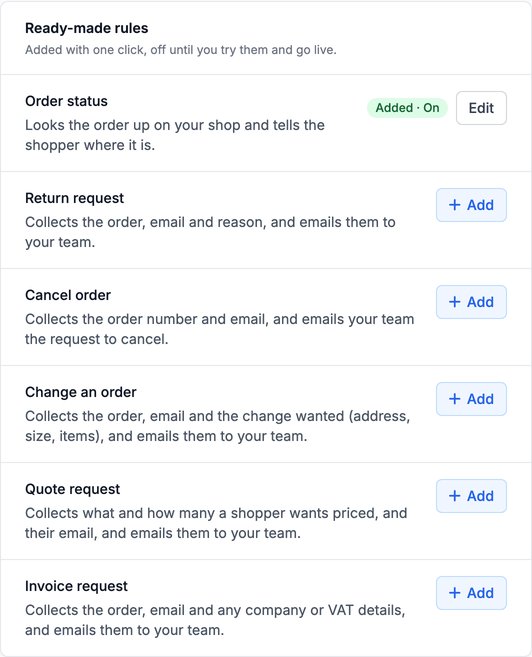
Six rules come ready to add with one click from the Ready-made rules panel at the bottom of the Rules page: Order status, Return request, and four that pass a request on to your team. They are added off: try them, then go live.
The six ready-made rules
| Rule | The shopper says | It asks for | Needs your plugin? |
|---|---|---|---|
| Order status | "Where is my order 1042?" | Order number and email; a signed-in shopper gives only the number | Yes |
| Return request | "I want to return my jacket, it's too small." | Order number, email and reason | No |
| Cancel order | "Please cancel order 1042." | Order number and email | No |
| Change an order | "Can I change the delivery address on my order?" | Order number, email and what to change | No |
| Quote request | "Can you give me a price for 200 units?" | Products and quantity, and an email | No |
| Invoice request | "I need a VAT invoice for order 1042." | Order number, email, and company or VAT number if any | No |
Order status
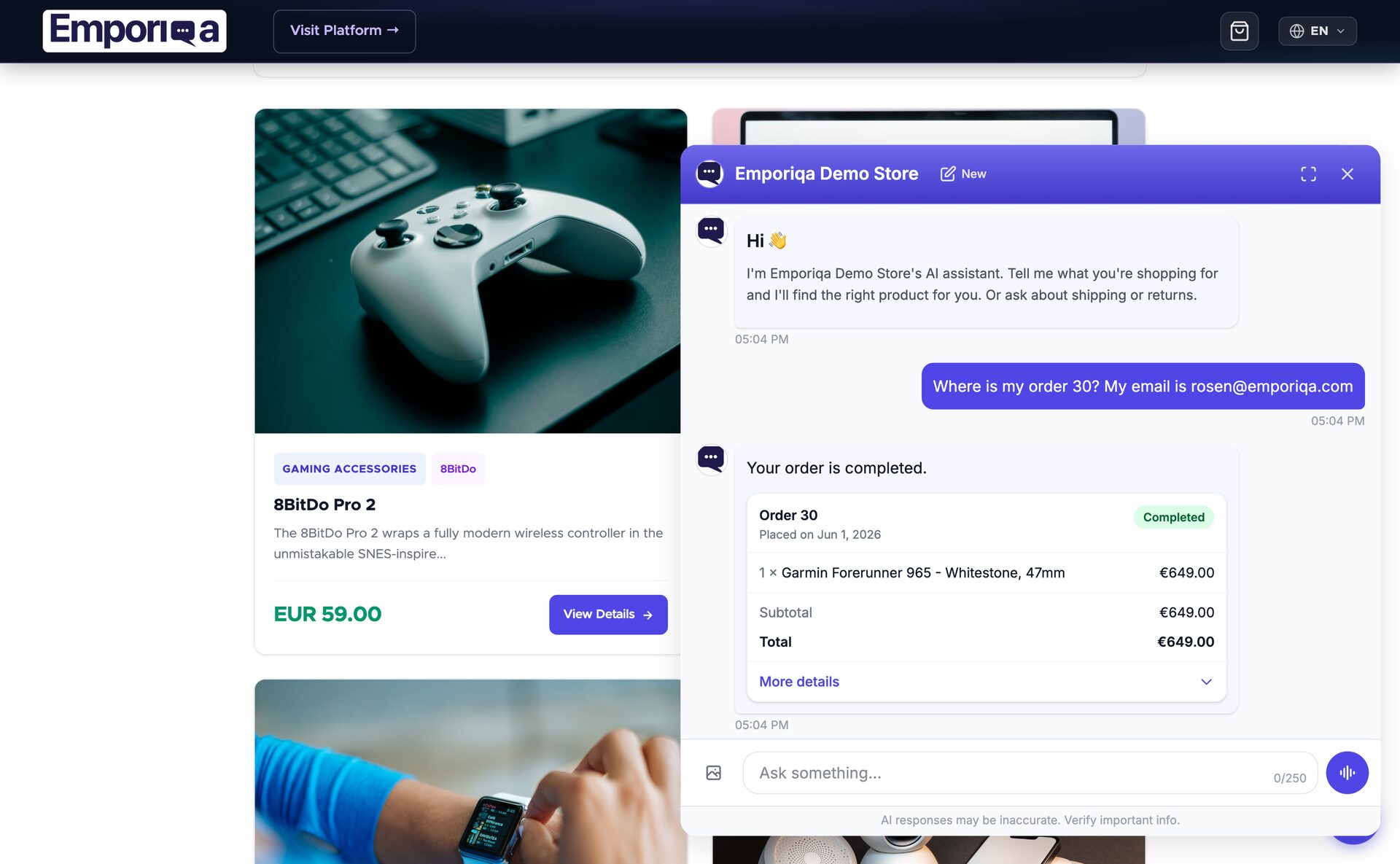
Answers "where is my order?" from your shop's own data. Your online salesperson asks your shop through your Emporiqa plugin and tells the shopper where the order is.
What the shopper sees
- A guest is asked for the order number and the email used for the order, in one question.
- A shopper signed in to your shop gives only the order number. Your plugin answers only for that customer's own orders.
- A signed-in shopper with no number at hand ("where is my order?") gets their newest order without being asked, on the plugin versions in the table below.
- The answer is one sentence with the status. When your shop sends more than the status, the dates and tracking, an order card shows the items and the totals, with the rest of what your shop sent under More details. A tracking link shows when your shop has one.
- When no order matches, the assistant asks the shopper to check the details. A second miss gets "I couldn't find it" and, when handoff is on, an offer to bring in your team. A wrong email and an unknown order get the same answer, so nobody can find out whether an order exists.
- When your shop can't be reached, the shopper is told the order can't be checked right now and is offered your team, or your contact details when handoff is off.
What your team sees
In the conversation view the lookup shows as Order looked up: with the order number, status, total and date, so you can see what the shopper was told.
What you set
- Update your Emporiqa plugin to the version in the table below and connect it.
- In your plugin's settings, click Open in Emporiqa next to Order status. Or open Settings → Rules and click Add next to Order status.
- A shop connected with Connect to Emporiqa needs nothing else: Emporiqa fills in your shop's address and checks it. If it ever asks for the address, paste the one your plugin shows. On Drupal and Sylius, which have no one-click connect, paste the Order status address your plugin shows under Check my shop and save. Emporiqa checks it with one signed call to your shop and emails the store owners a link to confirm it.
- Under Try it, enter one of your recent order numbers and the email used for it. When the answer is right, click Go live.
There is nothing else to decide: your shop plugin answers this rule. Under Customize you can change the examples and the notes on how to word the answer, but not the address, the names of the details or what your shop sends back.
Plugin versions
Order status needs a connected Emporiqa plugin. A store that adds the chat with the embed script alone can't add it, and the Ready-made rules panel says why.
| Platform | Order status from | Newest order for signed-in shoppers from |
|---|---|---|
| WooCommerce | 1.2.0 | 1.2.2 |
| PrestaShop | 1.3.0 | 1.3.3 |
| Magento | 1.4.0 | 1.4.2 |
| Shopware | 1.3.0 | 1.3.2 |
| Drupal Commerce | 1.1.0 | 1.1.1 |
| Sylius | 1.11.0 | 1.11.1 |
Each platform name links to its Order status setup guide.
Already answering order questions through the older order tracking (an Order Tracking API URL)? It keeps working. Once Order status is live it answers instead, and your platform's setup guide says how to switch the old one off.
Return request
Collects what your team needs for a return, an exchange or a refund, and emails it to them. It works on every store, including one that adds the chat with the embed script, because nothing in your shop is called.
What the shopper sees
The assistant asks for the order number, the email used for the order and the reason, then confirms in the shopper's language, along these lines:
Thanks, I've passed your return request for order 1042 to the team; they'll reply to [email protected] within 1 business day.
The confirmation says the request was passed on. Whether the return is accepted stays your team's decision.
- A shopper who only says what they want ("I want to return my order") is asked why, so your team learns what is wrong or why they changed their mind.
- A shopper signed in to your shop is not asked for the email: it is read from their account, on the plugin versions in the second column of the table above. The email to your team marks it "(from the shopper's account)". A Return request added before 8 October 2026 asks as before until you open Customize and set its Email to From the signed-in shopper's account.
- A shopper who asks afterwards ("so my refund is approved?") hears that the request was passed on and that your team decides, and nothing is sent again.
- A product question in the same message ("and do you have it in M?") gets its normal answer beside the request.
What your team gets
- An email to the people ticked under Send to, with a subject like "Return request (wants a refund): order 1042 (your store name)".
- The details, marked "given by the customer, not verified", the shopper's messages as typed, with an English translation when they wrote in another language, and a link to the conversation.
- Replying to the email reaches the shopper: its reply address is the email the shopper gave, when that is a valid address.
- In your Conversations list the conversation is marked Emailed to team, with a Resolve button. The assistant keeps answering the shopper meanwhile.
- One email per request. A second return in the same conversation, for another order, is its own email; the same request again is not sent twice; a detail the shopper corrects right after sends an "Update to Return request" email. Up to 3 requests per rule per conversation; past that the shopper is told it could not be passed on and is offered your team.
What you set
- Your team replies within: what the shopper is told. "1 business day" until you change it.
- Send to: which store members get the email. A new rule ticks you. To use a shared inbox, add it as a member under Members. With no one ticked the rule can't go live, and a live rule whose ticked people have all left the store emails the owners.
- Also take it when the shopper reports a problem (broken, damaged, wrong item): off by default, so a person from your team takes those conversations straight away. When it is on, the rule collects the details, the email is marked [Problem reported] and sent as high priority, and the shopper is also offered your team when handoff is on. Complaints about your staff or service, and safety issues, always go to a person.
- Under Customize: the wording of the confirmation, the examples and the details it asks for.
Cancel, change, quote and invoice
Four more ready-made rules work like Return request: they collect what your team needs and email it to them, on every store, with no plugin needed.
- The shopper hears that the request was passed on and when your team replies (Your team replies within). The assistant never says an order was cancelled or changed: your team does that in your shop.
- A shopper signed in to your shop is not asked for their email: it comes from their account, on the plugin versions in the second column of the Order status table.
- When the shopper is upset, reports a fault (broken, missing, the wrong item) or asks for a person in the chat, the conversation still goes to a person from your team, as it does without these rules.
- Each one has the same settings as Return request: Send to, Your team replies within, the confirmation's wording, Try it and Go live.
Cancel order
- When:
- a shopper wants to cancel an order they already placed.
- Asks for:
- the order number and the email used for the order. You can add a Reason under Customize.
- Not for:
- questions about your cancellation policy, and removing something from the cart.
Thanks, I've passed your request to cancel order 1042 to the team; they'll reply to [email protected] within 1 business day.
Change an order
- When:
- a shopper wants to change an order they already placed: the delivery address, a size or colour, or an item added or removed.
- Asks for:
- the order number, the email and what to change.
- Not for:
- changes to the cart before checkout, and a return after delivery (that is Return request).
Thanks, I've passed your change request for order 1042 to the team; they'll reply to [email protected] within 1 business day.
Quote request
- When:
- a shopper asks for a price quote: a large quantity, business or trade terms, or custom work.
- Asks for:
- the products and quantity, and an email. You can add Company, Needed by and Phone under Customize.
- Not for:
- the listed price of an item, which the assistant answers as usual, and discount codes.
Thanks, I've passed your quote request to the team; they'll reply to [email protected] within 1 business day.
Invoice request
- When:
- a shopper needs an invoice for an order: a copy, a company or VAT invoice, or a correction to one.
- Asks for:
- the order number, the email and, if they have any, the company name, VAT number or correction.
- Not for:
- whether prices include VAT, and a payment that fails.
Thanks, I've passed your invoice request for order 1042 to the team; they'll reply to [email protected] within 1 business day.
Your own rules
Click New rule and describe what should happen, in your own words: "When someone asks about a warranty, get their order number and a photo of the problem, then email my team." Draft my rule fills in the editor for you to check. Anything a rule can't do, like collecting a photo, is listed so you know. Nothing is saved until you click Save rule, and Start from scratch instead opens an empty editor.
The parts of a rule
- When
- One sentence about the shopper's situation, plus one to three messages that should use the rule, written the way a shopper would type them. Under More options, up to three that should not: close, but for the normal chat.
- Ask for
- The details to collect. Each one has the label the shopper sees, why it is needed or where to find it, and whether it is required; an optional detail is asked once. Under More options: its type (text, email or phone), how the value is found (ask the shopper, use a value unless the shopper says otherwise, or always send a fixed value the shopper can't change), and whether it identifies an order or booking. A detail that identifies one needs a second required detail that checks it's the shopper's, like the email on the order. An email, a name or an order number can also be read from the account of a shopper signed in to your shop (From the signed-in shopper's account), on the plugin versions in the Order status table; a guest is asked as usual.
- Then
- Where the reply comes from (My text, Checking my shop or "Passed on") and what else happens after it (Email my team, Send to Zapier or Make, Offer a person).
What a rule can do
My text
Answers with what you write. The assistant says it in the shopper's language and in context, not word for word. Numbers, dates and links stay exactly as you wrote them. Put a detail's name in braces, like {order_number}, to use what the shopper gave. If your text says something was done ("booked", "refunded"), the editor warns you, because a rule does not do it.
Checking my shop
Sends the details in a signed request to an address on your shop and answers from what your shop sends back. Your shop must be connected with Connect to Emporiqa (WooCommerce, PrestaShop, Magento or Shopware), and the address must be on that shop's domain. Under Use these fields you tick which parts of the answer the reply may use; Try it fills them in from your shop's answer, and nothing unticked reaches the shopper. When you reply takes notes on wording. Your shop has 5 seconds to answer. The request format is under For developers.
"Passed on"
Tells the shopper your team has it. It needs Email my team or Send to Zapier or Make ticked, and the shopper hears "passed on" only once the email or request is on its way. If it can't go out (a limit was reached, or no one is there to receive it), the shopper is told so and offered your team, or your contact details when handoff is off.
Email my team
Emails the details, the shopper's messages and a link to the conversation to the members ticked under Send to, and marks the conversation Emailed to team, as described for Return request above. The emails are in English.
Send to Zapier or Make
Posts the details to a Zapier catch hook (hooks.zapier.com) or a Make webhook, so a Zap or scenario can add a row to a sheet, open a ticket or post in Slack. The address works like a password: a new one takes effect only after a store owner confirms it from an email. A failed send is retried 3 times. Zapier reports success even when the Zap is off, so check the Zap's history if nothing arrives.
Offer a person
After the reply, offers to bring in your team, with the collected details attached to the handoff. It needs handoff switched on for your store.
Email my team, Send to Zapier or Make and Offer a person run only after the reply worked: if your shop finds nothing, nobody is emailed.
More options
- Also send with the details: the page the shopper is on, the product they're viewing, their cart, their message as typed. It goes to your shop when the rule checks it, and to Zapier or Make when the rule sends there.
- Signed-in customers skip the check (Checking my shop): a shopper signed in to your shop is not asked for the details that prove it's theirs. Your shop gets their customer id instead and must answer only for that customer.
- Answer beside product questions: when the shopper is also asking about a product, the rule's reply is added beside the product answer. With it off, a product question keeps the normal product answer.
- Also take it when the shopper reports a problem: as for Return request above.
- Test on my last 50 shopper messages: shows which of your recent shopper messages the rule would have answered, and which another rule took. Nothing is stored.
- Order: drag rules on the Rules page. When two rules could answer, the higher one wins.
Try it, then go live
Every rule starts off. Below the editor, Try it is a small chat: send a message as a shopper would, answer its questions, and it says what happened, one line per step: "Found it in your shop", "Emailed your team (marked [TEST])", "Would not use this rule for this message". A message can be added as an example that should, or should not, use the rule.
Try it runs the saved rule for real, in test mode: emails go out marked [TEST], Zapier or Make get a test request, your shop gets a request marked as a test, and nothing is billed. Save first, because Try it uses the saved version.
What counts as a pass
- My text: a written answer that passes our checks.
- Checking my shop: a signed, valid answer from your shop, whether it found something or not.
- Email my team: a [TEST] email sent to the people under Send to.
- Send to Zapier or Make: the hook accepted the test request.
- With extras ticked, each one must have gone out in that run, so a rule that checks your shop and then emails passes only when your shop finds something.
Going live
Click Go live under a passing run, or use the switch on the Rules page. The rule answers shoppers from their next message, and every owner of the store gets an email saying who switched it on. The same switch turns it off from the next message.
A live rule answers shoppers while you change its wording. To change what it sends or calls (the address, the details, the sends), turn it off first, then run a passing Try it and go live again. When Go live is greyed out, the reasons are listed under it, such as no one ticked under Send to, or a webhook address that no owner has confirmed yet.
Activity
Each rule on the Rules page shows how often it answered this week. Its activity link shows what it did in real conversations; test runs are not shown:
- Recent answers: the shopper's words that matched, with emails, phone numbers and order numbers masked, and a link to the conversation.
- The last 20 calls, emails and webhooks, with the result, how long each took, and where a failure happened: your shop or Emporiqa.
- Messages another rule took, when two rules matched one message.
Paused by Emporiqa
If one kind of rule misbehaves on our side, we can pause it while we fix it. The rule then shows "Paused by Emporiqa while we fix an issue", shoppers get the normal answer, and your on or off choice stays as it was for when the pause lifts. There is nothing for you to do.
What a rule never does, and where the details go
A request for a person always wins.
When a shopper asks for a person, the rule steps aside and your normal handoff takes over, whatever rule is running. Complaints about your staff or service, and safety issues, always go to a person.
A rule only looks things up and passes them on.
It can't cancel, refund or change an order, change a price or touch the cart.
Only the shopper's own order.
Order status needs the order number and the email on the order, or a shopper signed in to your shop, and then only that customer's orders. A wrong email and an unknown order get the same answer. Lookups are limited per conversation, per visitor and per store.
Signed requests.
Every request to your shop is signed with a key derived from your connection secret and refused after 5 minutes. Your plugin signs its answer back, and an answer that fails the check is not used. Rules call only your shop's own proven address, or Zapier and Make for the webhook action.
Nothing is claimed as done.
The shopper hears "passed on" only once the email or request is on its way, and an order status only from your shop's answer. Every number, date and link in a rule's reply comes from your text, your shop's answer or what the shopper gave; a reply that fails that check is replaced by a short fixed one.
The details go where you send them.
To your shop, to your store members' inboxes, or to your own Zapier or Make account, which are your recipients rather than Emporiqa subprocessors. Collect only what you need and mention it in your privacy notice. Conversations, with the details shoppers typed or that were read from their account, are deleted 90 days after the conversation's last activity.
Owners only.
Only store owners can create, change, test or switch on a rule. Every change is logged, going live emails every owner, and a new webhook or shop address waits for an owner's click in an email.
The full list of who processes chat data is on the subprocessors page.
Limits
| What | Limit |
|---|---|
| Your own rules per store | 25, plus the ready-made ones |
| When | 300 characters |
| Example messages | Up to 3 that should use the rule and 3 that should not, 150 characters each |
| Answer text | 1,000 characters |
| Notes on wording (When you reply) | 500 characters |
| A detail's label and description | 60 and 200 characters |
| Time your shop has to answer | 5 seconds |
| Lookups in your shop | 5 per conversation, 15 per visitor an hour, 8 per store a minute |
| Team emails | 1 per request, up to 3 requests per rule per conversation; 30 per store an hour and 200 a day |
| [TEST] emails from Try it | 10 per store a day |
| Try it, Test on my last 50, Draft my rule | 50, 5 and 20 runs per owner a day |
What rules cost
Nothing extra. A conversation in which a rule runs is billed like any other conversation, $0.25, inside your monthly cap. Try it runs are not billed. See pricing
For developers: the Checking my shop request
A Checking my shop rule sends a POST with a JSON body to the address in the rule. Order status uses this format too, at your plugin's built-in address.
Request
POST https://your-store.com/your/endpoint
Content-Type: application/json
X-Emporiqa-Action-Signature: t=1760000000,v1=<hex>

{
  "rule": "warranty_check",
  "request_id": "7d3c2b9e-0f4a-5c1d-9e8b-2a6f4c1d0e3b",
  "language": "fr",
  "channel": "web",
  "currency": "EUR",
  "country": "FR",
  "signed_in": false,
  "test": false,
  "fields": {"order_number": "1042", "email": "[email protected]"},
  "customer": null,
  "context": {"message": "is my blender still under warranty?"}
}rule: the rule's name as a slug (order_statusfor Order status).fields: the details the shopper gave, under the Name set under More options, plus any fixed values. A detail with no value is left out.customer:{"id": "77"}only when the shopper is signed in to your shop and your plugin passed a verified token, elsenull. Then answer only for that customer.context: only what you ticked under Also send with the details.test:truefor requests from Try it. Answer with real data and change nothing.request_id: stays the same when we retry a request, so you can answer a repeat once.
Signature
The header carries a Unix timestamp and an HMAC-SHA256 of the timestamp and the raw body, under a key derived from your connection secret and your public store ID. Refuse a timestamp more than 5 minutes off, and accept the header when any v1 value matches: while you change your secret, it carries one per secret, newest first.
key  = HKDF-SHA256(ikm = connection secret (UTF-8), salt = "emporiqa-v2",
                  info = "emporiqa-to-plugin:" + public store ID, length = 32)
v1   = hex(HMAC-SHA256(key, t + "." + raw_body))

# PHP
$key = hash_hkdf('sha256', $secret, 32, 'emporiqa-to-plugin:' . $storeId, 'emporiqa-v2');
$ok  = hash_equals(hash_hmac('sha256', $t . '.' . $rawBody, $key), $v1);

# Signing your answer (X-Emporiqa-Response-Signature: t=...,v1=...)
key  = the same HKDF with info = "response:" + public store ID
v1   = hex(HMAC-SHA256(key, t + "." + request_id + "." + raw_response_body))
Response
{
  "status": "found",
  "text": "The warranty on this order runs until 12 March 2027.",
  "data": {"deadline": "2027-03-12", "eligible": true},
  "products": ["SKU-1"]
}status:found;not_foundwhen there is no such record or the details don't match it (one answer for both);rejectedwhen a required detail is missing or malformed;error. Answer with HTTP 200 for the first three.text: a sentence the reply may use.data: facts for the reply; only the keys ticked under Use these fields are used.products: up to 10 product IDs or SKUs from your synced catalog, shown as product cards.ask: names of the rule's details to ask for, then call again.handoff:trueto offer your team.- Signing the answer is optional for your own endpoint; once one answer is signed, every later one must be. Emporiqa plugins always sign.
Zapier and Make receive the same body, signed under the label emporiqa-to-webhook, so it can never be replayed at your shop. Their answer is not read: a 2xx only means the request was accepted.
Frequently asked questions
Do I need a plugin for rules?
Not for Return request, the four other ready-made rules that email your team, or rules that answer with your text, email your team or send to Zapier or Make: those work on any store. Order status and Checking my shop ask your shop, so they need a connected Emporiqa plugin.
Can a rule refund or cancel an order?
No. A rule looks things up and passes them on; your team decides and acts. Cancel order passes the request to your team, and the reply never says something was done when it was not.
What if the shopper asks for a person in the middle of a rule?
The request for a person wins. Your team sees the whole conversation, including anything the shopper already gave.
Which languages do rules work in?
Write a rule in your own language. It is matched on meaning, so shoppers writing in other languages are covered too, and the assistant replies in the shopper's language.
Can team members who are not owners change rules?
No. Settings > Rules is for store owners only, and every owner is emailed when a rule goes live.
Why doesn't my rule answer a message about a product?
A message that is a product question keeps the product answer, so a rule never costs you a sale. Tick Answer beside product questions under More options to add the rule's reply next to it.
What happens to my old Store rules?
Store rules are the older keyword replies and are being retired. While your store has them they keep working, and the Rules page links to them.
Try a rule on your own store
Add Return request in one click, or describe your own rule. Every store starts with $25 of signup credit, about 100 conversations, and no card is needed.
Open your dashboard