Run your shop’s AI assistant from Claude or ChatGPT
Ask how your shop did this week, who is waiting for your team and what customers emailed, and change your AI shop assistant’s settings in the same chat. Nothing on a live store changes before your yes.
Works with Claude (in its connector directory), ChatGPT and other apps that support MCP connectors. In ChatGPT, add it as a custom connector (MCP). For WooCommerce, PrestaShop, Magento, Shopware, Drupal Commerce and Sylius stores.
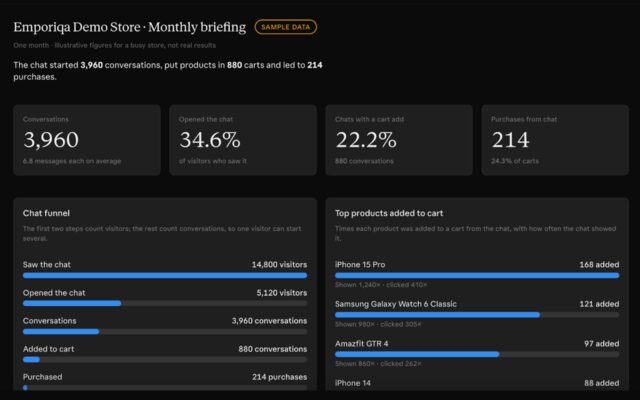
What you can ask
Ask in your own words. It answers from your dashboard’s own figures, for the stores you own.
-
How did my shop do this week?
Results
-
Are customers waiting for my team?
Who is waiting
-
Is my catalog syncing?
Catalog and sync
-
What are my business hours and away message?
Settings
-
How much have I spent this month, and how much credit is left?
Spend and credit
-
Draft a reply to the latest customer email.
Customer emails, if you switch them on
Four jobs, one connector
An MCP connector, signed in with OAuth: you sign in to Emporiqa once, press Allow, and Claude or ChatGPT works with your account.
-
Ask how your shop is doing
Conversations, sales from the chat, the products and pages it shows most, handoffs and ratings, who is waiting for your team, your catalog and its sync, your settings and your spend, for the last 7, 30 or 90 days or this month. The figures are your dashboard’s own, and each answer links to the matching page.
Reports cover the stores you own. For a store where you are on the team, it sees the name.
-
Set up a new store in the chat
Say “Set up my shop” and give it your website. It creates the store and shows you one proposal: colours, header title, greeting, starter questions, tone, a welcome and a goodbye popup, and the countries you sell to. After your yes, try your chat, then connect your catalog last, with the install steps it gives you for your platform.
This works until your chat is live on your shop. After that, it changes a live store as described below.
-
Change a live store, after your yes
The header title, greeting, starter questions, colours, popups, business hours, away and in-hours messages, switches such as add to cart and ratings, promoted products, and switching a rule off. It shows you each setting before and after and saves the change only after your yes. Every owner of the store gets an email with the change and an Undo link that works for 7 days.
Only in your dashboard: voice, custom instructions and tone, the pages, the allowed websites, the country filter, the monthly cap, going live, sign-in methods, the team, and connecting channels or a mailbox.
-
Conversations and customer emails, off until you switch them on
Tick “Read conversations and customer emails” on the Allow page, and an owner switches it on for the store in Settings > Security. It can then show who is waiting and read a conversation, read the customer emails in your connected mailbox, draft a reply that waits in Customer emails for your team, and draft a page for a question the chat could not answer, which goes live only when you save it. With a second tick, it sends an email reply you approve in the chat: one customer at a time, to the address the email came from.
It never writes in a chat conversation or takes one over.
What it cannot do
What it cannot do
- Write in a chat conversation with a shopper, or take one over.
- Change billing, delete anything, or manage your team and sign-in.
- See your connection secret, webhook addresses or reporting keys.
- Install the plugin or press Go live: you do both yourself.
- Read conversations or customer emails, unless you allow it and an owner switches it on for the store.
Why it asks before changing a live store
Claude and ChatGPT read text from everywhere: web pages, emails, documents you paste in, and some of that text is written to give them instructions. So the connector sets a store up freely only before its chat is live, while no shopper sees the result. Once it is live, it shows you each change first and saves it only after your yes. Every change goes through the dashboard’s own checks (the greeting must say the chat is an AI, and texts are plain, with no HTML) and is recorded in the store’s activity log with the app’s name.
What it reads, and who receives it
Without the boxes below, it reads counts, your catalog (product names, SKUs, links and page titles) and your settings, never what shoppers wrote.
- Two separate boxes on the Allow page: one to read conversations and customer emails, one to send replies. The send box can be ticked only with the first.
- An owner switches reading on for each store in Settings > Security, after signing in within the last 15 minutes, and the store’s other owners get an email. Switching it off stops every app at once.
- What it reads is trimmed: photos, files, attachments and phone numbers are left out, email addresses are masked, and text a customer wrote is marked as data, not instructions. An email held back as unsafe or with hidden text is not shown.
- Every conversation or email it reads, and every change it makes, is recorded in the store’s activity log with the app’s name.
- A reply it sends goes only where an Emporiqa draft is ready. Numbers, email addresses and links in it must already be in the draft or in your shop’s contact details, a bank or card number or masked text is refused, and each store has a limit of 30 sends an hour and 200 a day.
- A store’s sign-in rules in Settings > Security apply to the app too.
- Disconnect an app any time in Profile > Connected apps. Changing your password disconnects every app at once.
The assistant you connect receives what you ask it to read, and so does its provider, such as Anthropic for Claude or OpenAI for ChatGPT. You choose that provider, and the data goes to it at your direction: it is not Emporiqa’s subprocessor. Switch conversations on only for an app you trust.
Next to your platform’s own MCP
WooCommerce and PrestaShop have their own MCP, for managing your store from an AI app. Emporiqa’s connector runs the AI shop assistant your shoppers talk to, so the two work side by side. On every platform it works with any app that supports MCP connectors.
What it costs
- Connecting it adds no charge, on every store: no add-on or separate plan.
- Test chats you open from it use your credit, like any conversation.
- An email reply it sends is billed like a reply sent from your dashboard. A draft is not billed.
Connect it in three steps
-
Add it
In Claude, find Emporiqa in the connector directory, or add https://emporiqa.com/mcp as a custom connector. In ChatGPT, add it as a custom connector (MCP).
-
Sign in and press Allow
Sign in to Emporiqa. Tick the boxes for conversations and sending only if you want them.
-
Ask
Switch Emporiqa on in the chat’s tools menu and ask “How are my stores doing?”
Questions store owners ask
Is it in ChatGPT’s app directory?
Not yet. In ChatGPT, add it as a custom connector (MCP). Check ChatGPT’s own help for the plans that can add custom connectors.
Does my team need Claude or ChatGPT?
No. Your team works in the Emporiqa dashboard as before. Each person who wants to ask from Claude or ChatGPT connects their own app with their own Emporiqa sign-in.
Which plan do I need?
None: the connector works on every store, with no add-on.
Can it reply to shoppers in the chat?
No. It never writes in a chat conversation or takes one over. With your permission, it sends the customer email replies you approve, one customer at a time.
Can I undo a change it made?
Yes. Every owner of the store gets an email with the change and an Undo link that works for 7 days, and the change is in the store’s activity log with the app’s name.
Which languages does it work in?
Yours: ask in your language, and it answers in it. For a store in several languages, it sets the texts and popups for each one.
Does it replace WooCommerce MCP?
No, it works next to it. WooCommerce MCP lets an AI app manage your products and orders; Emporiqa’s connector runs your AI shop assistant: its results, its settings, its conversations and customer emails.
Run your AI shop assistant from Claude or ChatGPT
Create a free account, connect Claude or ChatGPT, and say “Set up my shop”.
Your signup credit covers your first conversations.
- Free to start
- Pay per use, no seat fees
- No card required